

Using Your People Hub
The People Hub is where you manage the full employee lifecycle: onboarding, role changes, and offboarding. It also gives you a live view of pending and completed tasks.
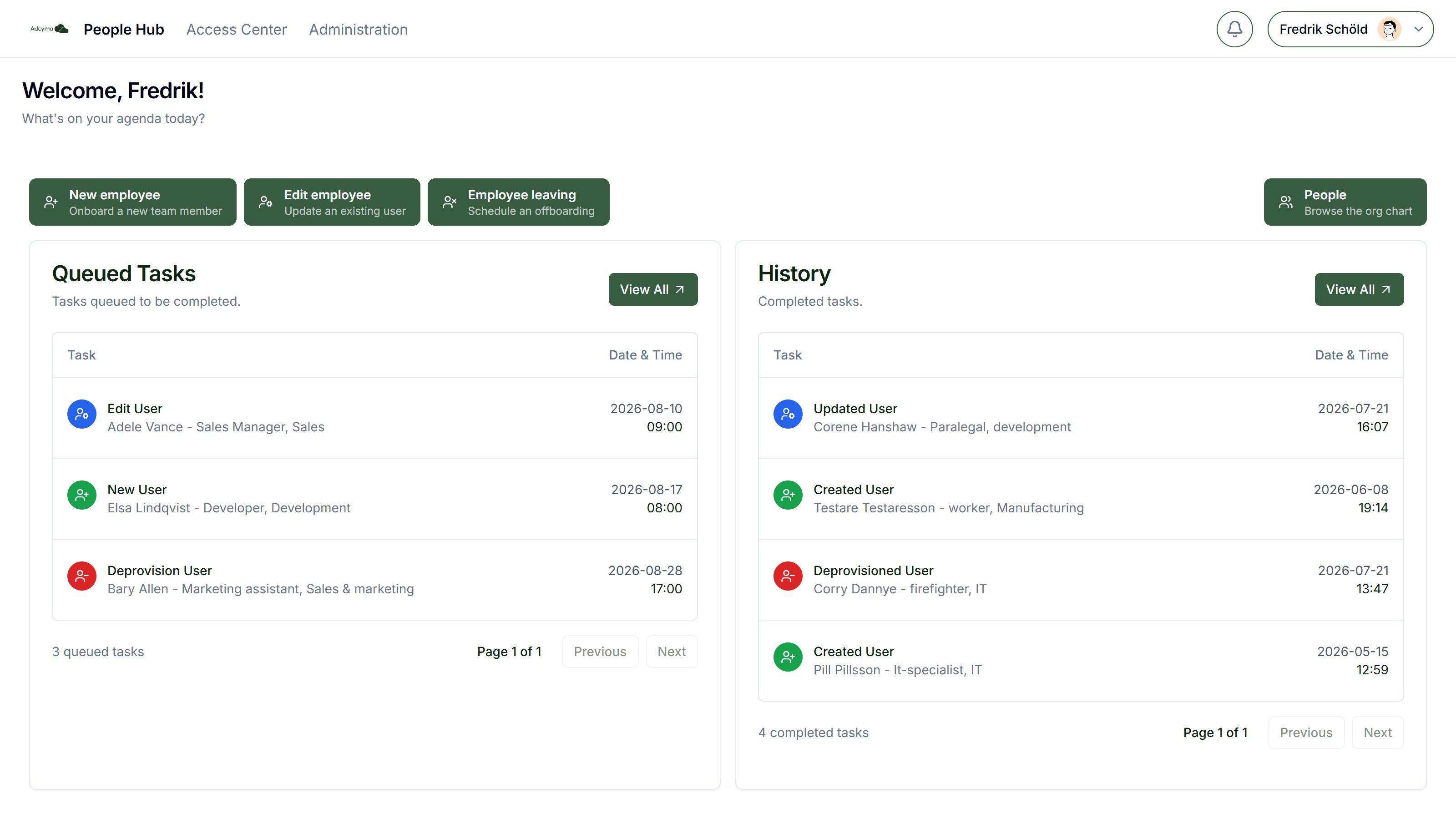
Interface Overview
The People Hub has three main action buttons:
- New employee for onboarding new hires
- Edit employee for updating existing employee information and roles
- Employee leaving for offboarding and access removal
To the right, the People button opens a browsable org chart of your organization.
Below the buttons you'll find two monitoring sections:
- Queued Tasks shows pending automation tasks
- History shows a full log of completed actions
Employee Onboarding
Starting the Process
- Click the "New employee" button to open the onboarding form
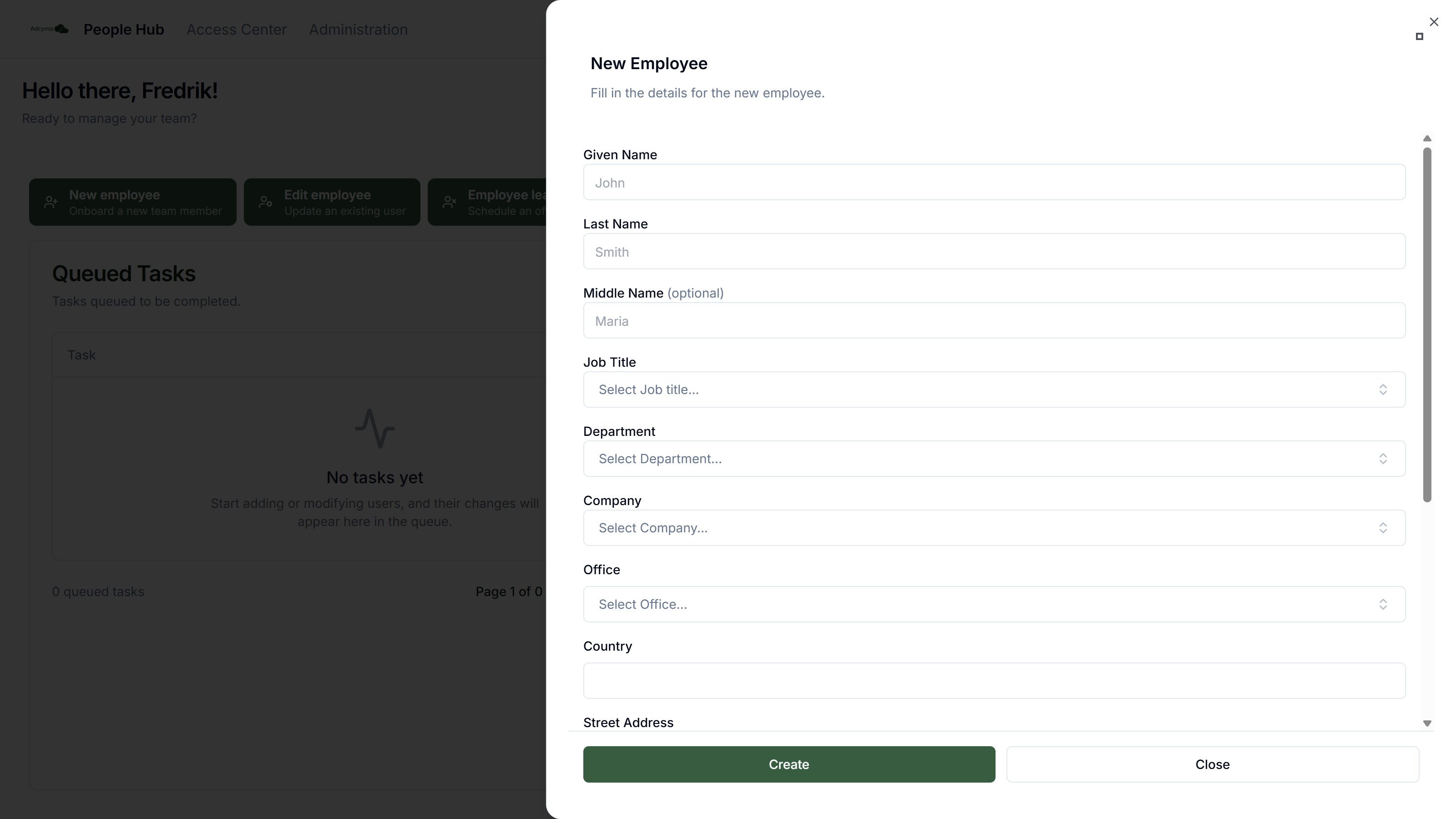
Required Information Fill in the details for the new employee:
- Given name, last name, and optional middle name
- Job title, department, and company (selected from dropdown menus managed on the Organization page)
- Office (selecting an office can populate the address fields)
- Country, street address, and city
- Preferred language (used for Microsoft ecosystem integration, not the Adcyma interface)
- Manager
- Starting date
Completion Click "Create" to submit the onboarding request. The username and email address are generated automatically from your Preferences.
The system processes this information through your configured workflows. You can track the resulting tasks in the "Queued Tasks" section.
Employee Updates
Initiating Changes
- Click the "Edit employee" button
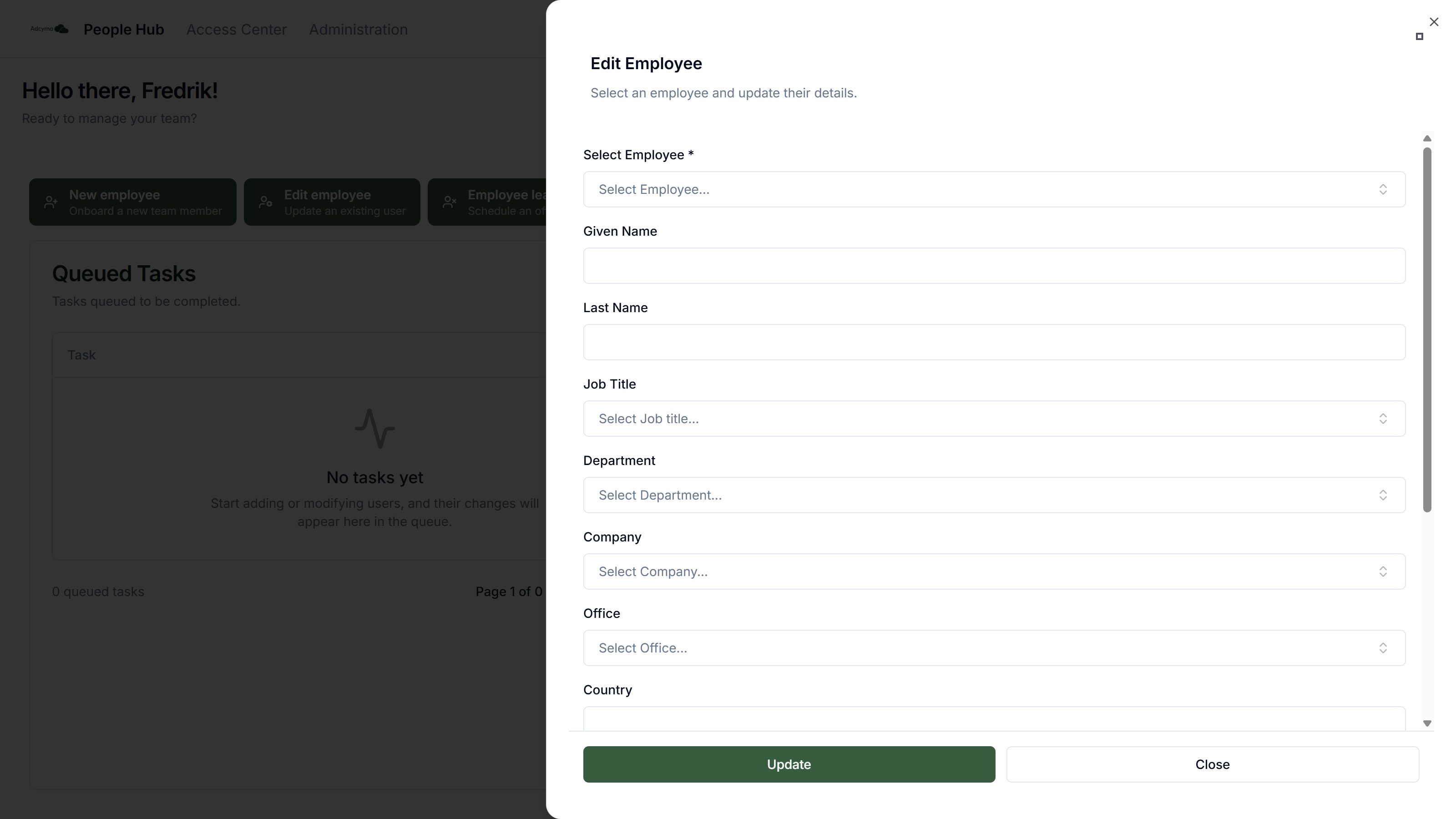
Making Updates 2. Search for and select the employee from the directory 3. Modify any of the attributes: name, job title, department, company, office, address, or manager 4. Set the Change Date for when the changes should take effect
Saving Changes 5. Click "Update" to queue the modifications
Employee Offboarding
Starting Offboarding
- Click the "Employee leaving" button
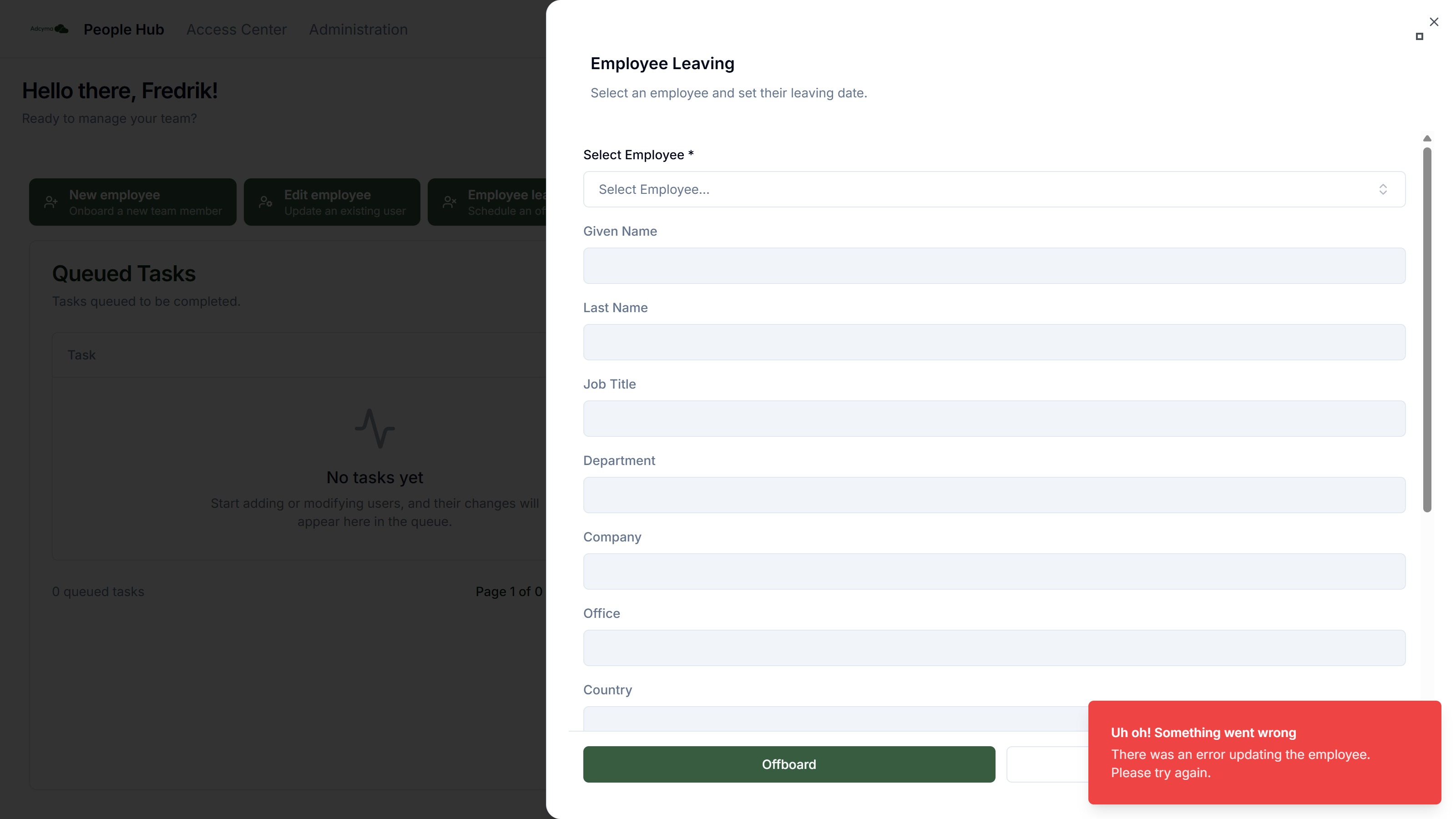
Processing Departure 2. Search for and select the departing employee
- Current employee information displays automatically for verification
- Set the "End Date" field to specify their final working day
- Click "Offboard" to initiate the departure workflow
Task Management and Monitoring
Active Task Queue
The "Queued Tasks" section shows what automation tasks are currently scheduled:
- View tasks that are waiting to run
- Click "View All" to open the full task management interface
Task Management Options:
- You can reschedule tasks to change when they execute
- You can remove tasks that are no longer needed
Historical Records
The "History" section keeps a full audit trail of completed lifecycle actions (Created User, Updated User, Deprovisioned User) with timestamps. Click "View All" to see detailed historical records.
Success Confirmation
Every action you complete generates a confirmation message, so you always know when a process has been successfully started.
Why Centralized Management Matters
By handling onboarding, changes, and offboarding from a single place, you reduce manual work, keep workflows consistent, and maintain a clear audit trail. The task queue and history sections let you track progress and catch issues early instead of wondering whether something actually ran.