

Approval Flows
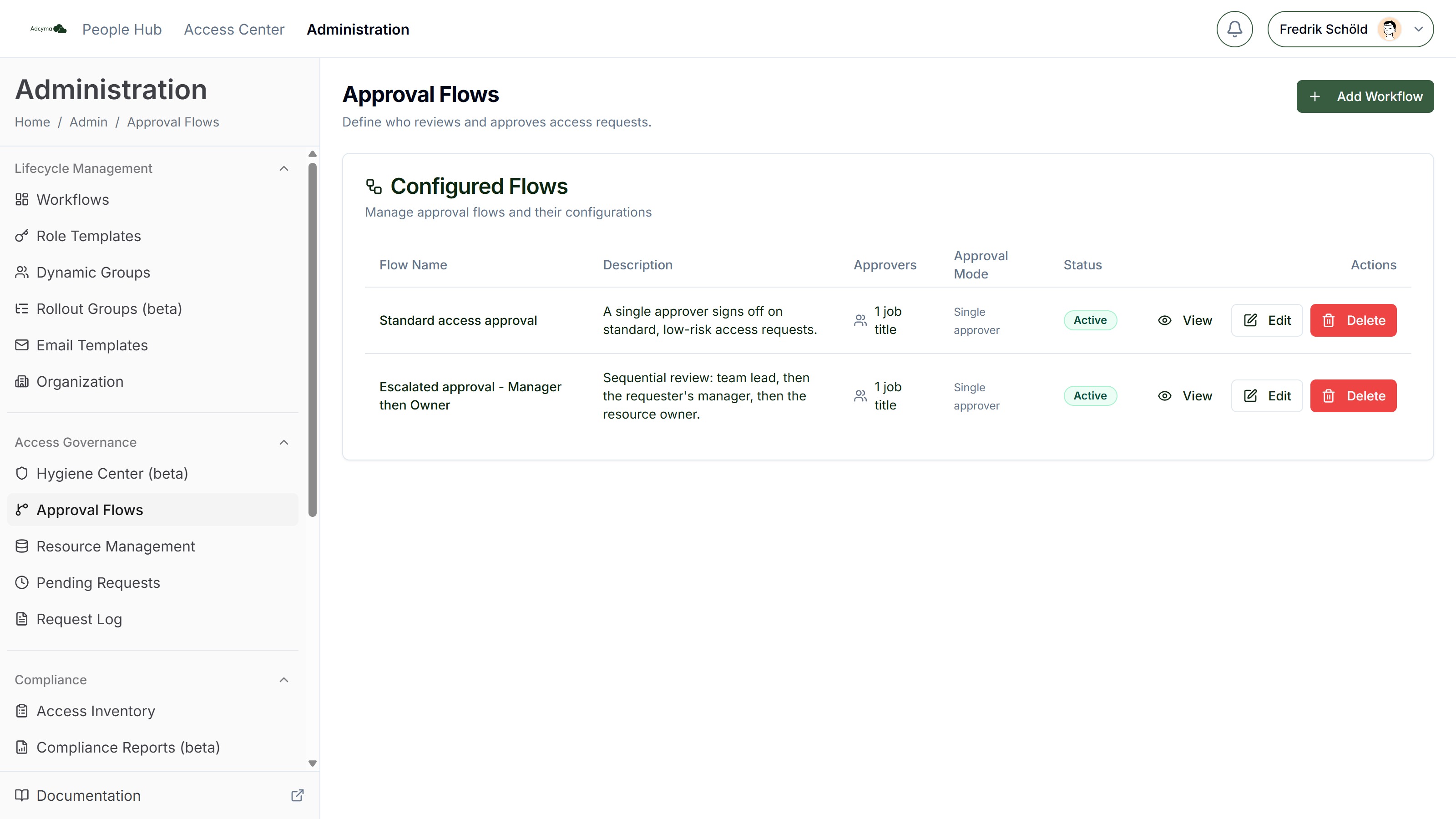
Approval Flows define who reviews and approves access requests. Each flow specifies the approvers and the approval mode. When a user requests access to a resource, the linked approval flow determines the path that request takes before access is granted.
When to Use Approval Flows
- You want access requests to require manager sign-off before provisioning
- Different resources need different approval processes (e.g., sensitive data requires VP approval, standard tools only need team lead approval)
- You need multi-approver flows where requests pass through several reviewers, in any order or in sequence
- Compliance requirements dictate that specific roles must authorize access
The Configured Flows Table
The page lists all your flows with their name, description, approvers summary, approval mode, and status (Active/Inactive). Use Add Workflow to create a new flow, or the View/Edit/Delete actions on each row.
Creating an Approval Flow
Basic Settings
Give your flow a descriptive name that indicates what it's for (e.g., "Finance Apps - Manager + Director" or "Standard Tool Access - Team Lead Only"), and optionally a description.
Approvers
You can mix different approver types within a single flow:
Specific Users Designate individual users as approvers. Best for: dedicated access managers, security team members, or specific department heads.
Job Titles Anyone with a matching job title can approve. Best for: distributing approval responsibility across people in the same role (e.g., all "Team Lead" users).
Boss (Manager) A dynamic placeholder that resolves to the requesting user's direct manager at the time of the request. Best for: ensuring line-of-business accountability without hardcoding names.
Resource Owner A dynamic placeholder that resolves to the owner of the resource being requested. Best for: resources where the owner is responsible for who gets access.
Approval Mode
When a flow has more than one approver, choose how they interact:
One of these Any single approver can approve the request. The request is approved as soon as one person acts. Use this for low-risk resources where any team lead can authorize access.
All of these Every listed approver must approve, in any order. The request isn't approved until all approvers have signed off. Use this when multiple stakeholders need to agree.
All of these in order Approvers must act in a specific sequence. Drag and drop the approvers to arrange the exact approval order; dynamic placeholders (Boss, Resource Owner) resolve at runtime. The request moves to the next approver only after the previous one has approved. Use this for escalation-style workflows (e.g., team lead first, then department head, then security).
Status
Flows can be set Active or Inactive. Inactive flows keep their configuration but aren't used for new requests.
Linking Flows to Resources
Approval flows are connected to resources in Resource Management. Each resource points to one approval flow (or uses Auto Approve). Multiple resources can share the same flow if they have identical approval requirements.
At least one approval flow must exist before you can create resources. Resource creation is disabled until then.
Best Practices
- Keep your approval flows as simple as the risk level warrants. Not every resource needs a three-stage approval chain.
- Use the Boss (Manager) approver type when possible. It scales automatically as your organization changes without needing to update the flow.
- Name your flows clearly so administrators can quickly understand what each one does when linking them to resources.
- Review your flows periodically. As your organization evolves, approval chains that made sense six months ago may need adjustment.
- Test new flows with a low-risk resource before applying them to critical ones.
Troubleshooting
If requests are stuck waiting for approval:
- Check that all designated approvers still exist and are active users
- For "all of these" flows, verify every approver has acted
- For Boss-based approvers, confirm the requester has a manager assigned in your directory
If the wrong person is being asked to approve:
- Review the approver configuration in the flow
- For Boss-based approvers, check the user's manager attribute
- For job title-based approvers, verify the title matches exactly
If a flow isn't being used:
- Confirm the flow is linked to at least one resource in Resource Management
- Check that the resource is active and visible in the Access Center