

Access Inventory
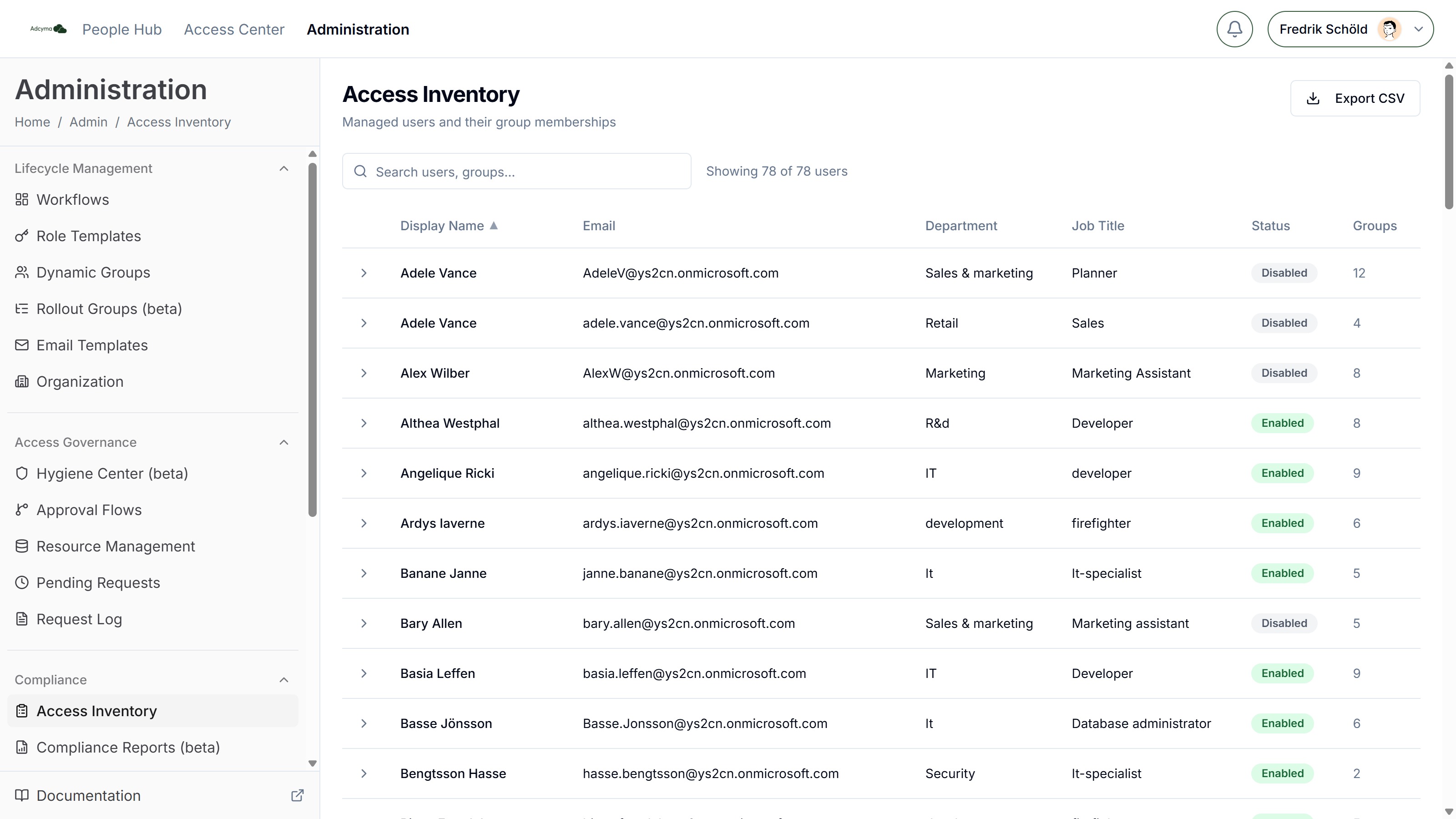
The Access Inventory gives you a complete overview of all managed users and their group memberships. Use it to audit who has access to what across your organization, without digging through your directory manually.
When to Use Access Inventory
- Preparing for an access review or compliance audit
- Investigating which groups a specific user belongs to
- Verifying that new employees have been assigned the correct groups
- Exporting a snapshot of user-to-group mappings for external reporting
Navigating the Inventory
The main table displays one row per managed user with the following sortable columns:
| Column | Description |
|---|---|
| Display Name | The user's full name |
| Primary email address | |
| Department | Organizational department |
| Job Title | Current job title |
| Status | Account status (Enabled/Disabled) |
| Groups | Number of groups the user belongs to |
Viewing Group Memberships
Click on any user row to expand it and see the full list of groups that user belongs to. This makes it easy to spot unexpected memberships or confirm that a user has the right set of groups.
Searching
Use the search bar to quickly locate users by name, email, department, job title, or even group name.
Exporting Data
Click Export CSV to download the full user inventory as a CSV file. The export includes all managed users regardless of any active search.
Best Practices
- Run periodic access reviews by exporting the inventory and comparing it against your expected group assignments.
- Use the search to focus on specific departments or teams during audits.
- Check the Groups count column for outliers. Users with unusually high or low group counts may warrant investigation.
- Combine Access Inventory with the Hygiene Center to identify users in groups that may no longer be needed.
Troubleshooting
If a user is missing from the inventory:
- Confirm the user is part of the managed users scope (see Managed Users)
- User data appears after the sync completes; trigger a manual refresh from Managed Users if the user was recently added
If group counts seem incorrect:
- Group membership data syncs from your directory on a regular schedule and may lag slightly behind recent changes