

Hygiene Center
The Hygiene Center helps you find unused groups and inactive user accounts that may be candidates for cleanup. Over time, organizations accumulate groups nobody uses and accounts nobody signs in to. The Hygiene Center surfaces both so you can make informed decisions about what to keep and what to remove.
The Hygiene Center is currently a beta feature. It is read-only: it reports findings, suggests an action and exports them, but it does not change or delete anything for you. You do the cleanup in Entra ID or Active Directory.
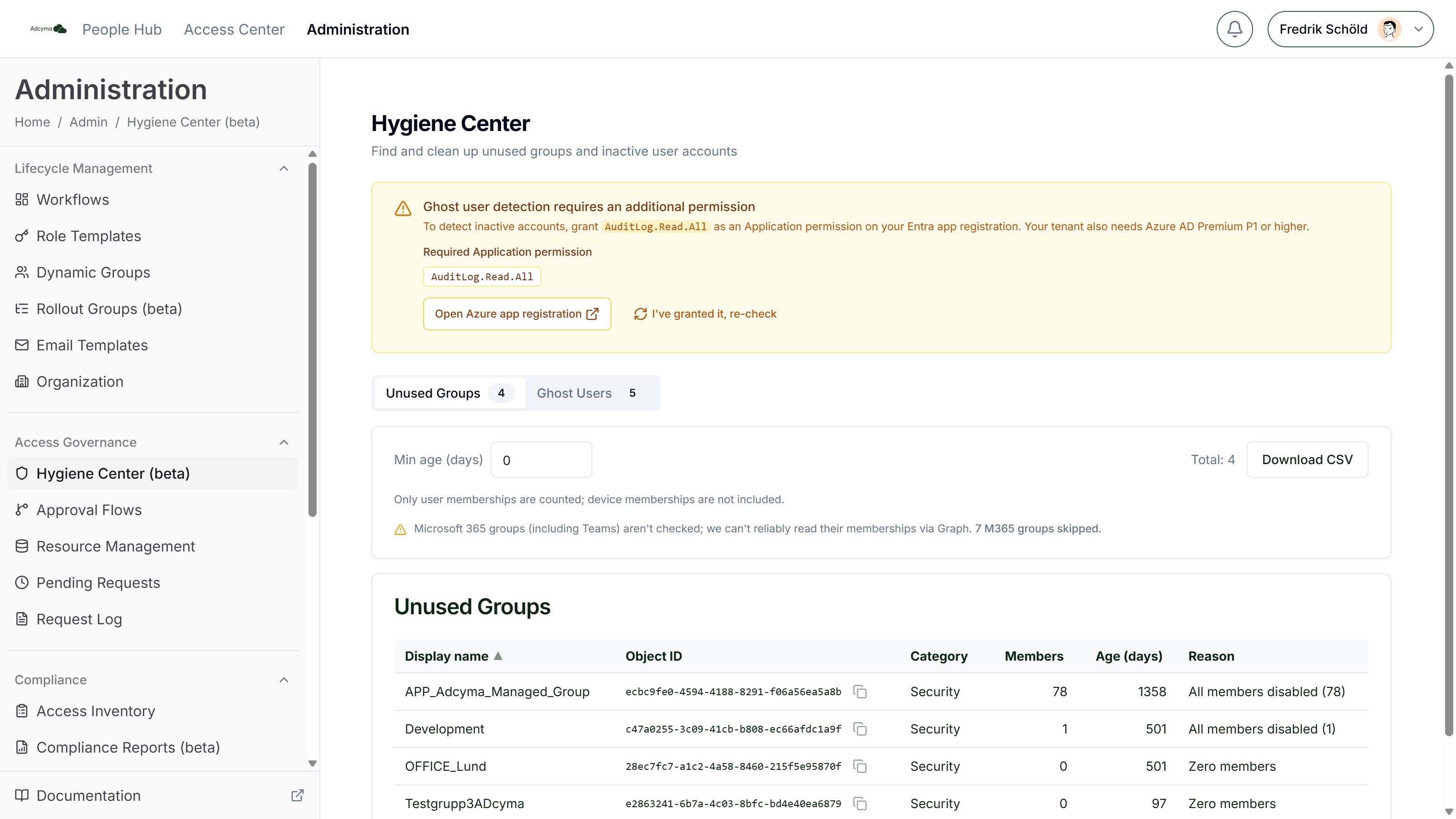
You'll find it under Hygiene Center (beta) in the Administration menu. The same checks also run once during first-time setup, on the "Your tenant, at a glance" step, so you get a first look at your directory before you've configured anything.
When to Use the Hygiene Center
- Periodic tenant hygiene reviews to reduce group sprawl
- Finding stale accounts that should be disabled or removed
- Preparing for a migration or consolidation where you need a clean inventory
- Compliance exercises that require justification for every active group and account
The Checks at a Glance
The Hygiene Center runs five checks, split across two tabs.
| Tab | Check | Flags | Threshold | Suggested action |
|---|---|---|---|---|
| Unused Groups | Zero members | Groups with no user members | Optional Min age (days), default 0 | Delete |
| Unused Groups | All members disabled | Groups where every user member is a disabled account | Optional Min age (days), default 0 | Delete |
| Ghost Users | Never signed in | Accounts with no recorded sign-in or logon at all, older than the inactive threshold | Inactive threshold (days), default 90 | Disable (enabled accounts) |
| Ghost Users | Inactive | Accounts whose last sign-in or logon is older than the threshold | Inactive threshold (days), default 90 | Disable (enabled accounts) |
| Ghost Users | Disabled and stale | Disabled accounts older than the threshold | Disabled older than (days), default 180 | Delete |
The suggested action is in the CSV export, in the recommendedAction column. Ghost users get disable when the account is enabled and delete when it's already disabled, so the suggestion is always the next reversible step.
Unused Groups
The Unused Groups tab lists groups that appear to be inactive.
Filters
- Min age (days) - Only show groups older than a certain number of days, so recently created groups that haven't had time to be used yet aren't flagged. At 0 (the default), groups of any age are shown, including groups without a creation date.
What gets flagged
- Zero members. The group has no user members.
- All members disabled. The group has user members, and every one of them is a disabled account. The Reason column shows how many, for example "All members disabled (4)".
What's skipped
Some groups are never flagged, because Adcyma either can't read them reliably or isn't the right place to clean them up:
- Microsoft 365 groups (including Teams). Their memberships can't be reliably read through Microsoft Graph in the same way. The page tells you how many M365 groups were skipped.
- Groups synced from on-premises Active Directory. Clean those up in AD. A change in Entra would be overwritten by the next sync anyway.
- Entra dynamic groups. Their membership comes from a rule, so an empty one usually means the rule matches nobody, not that the group is unused.
Only user memberships are counted; device memberships are not included. A group that only contains devices shows up as having zero members.
The results table shows:
| Column | Description |
|---|---|
| Display name | The group's name in your directory |
| Object ID | The unique object identifier (with a copy button) |
| Category | Security, Distribution, Mail-enabled Security or Other |
| Members | Current member count |
| Age (days) | How many days since the group was created |
| Reason | Why the group was flagged: "Zero members" or "All members disabled (n)" |
Every column can be sorted.
Ghost Users
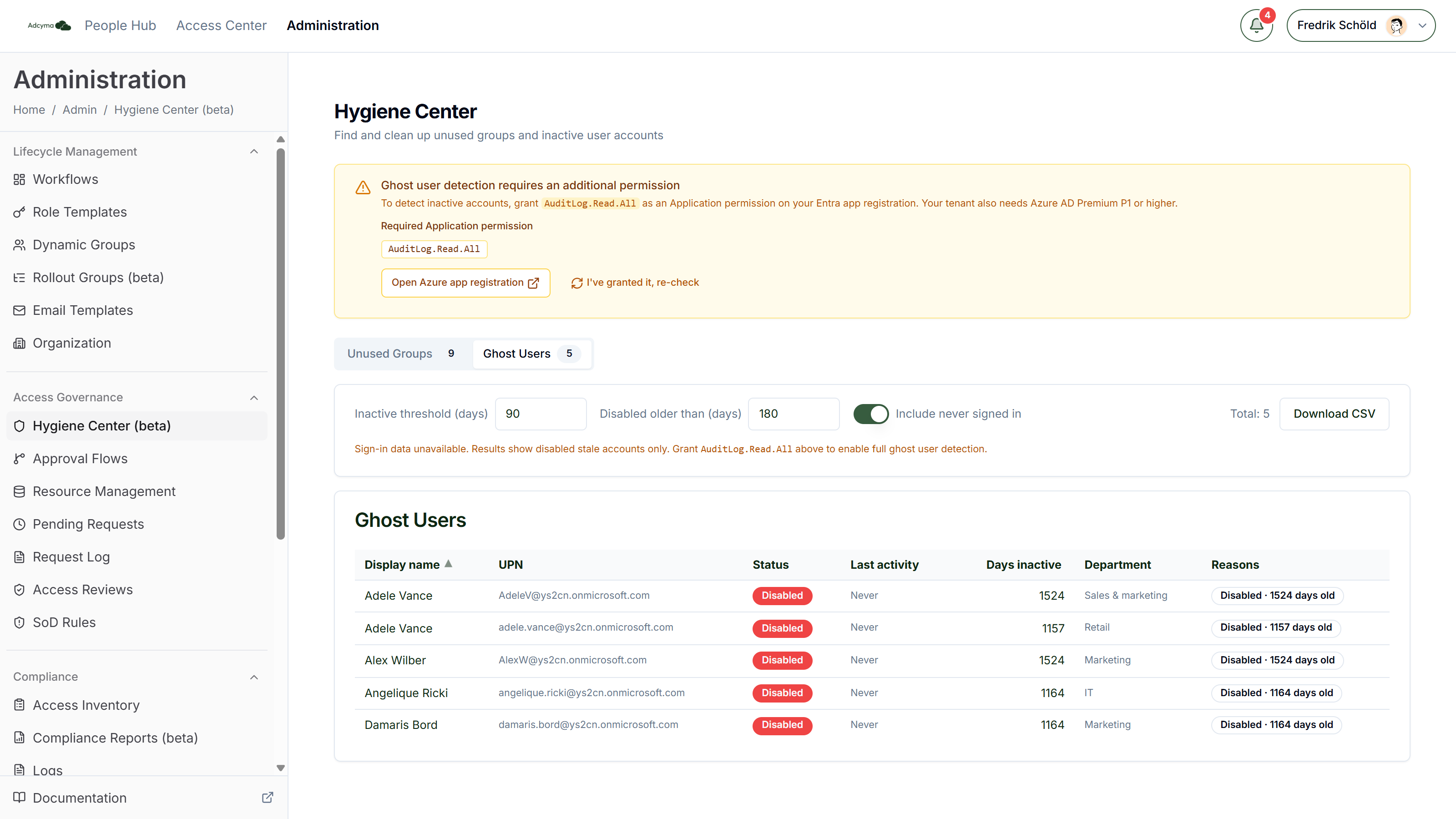
The Ghost Users tab lists user accounts that look abandoned.
Filters
- Inactive threshold (days) - Flag users with no sign-in activity for this many days (default 90)
- Disabled older than (days) - Flag disabled accounts older than this (default 180)
- Include never signed in - Whether accounts that have never signed in are included (default on)
What gets flagged
An account is listed if it meets at least one of these. The Reasons column shows every one that applies.
- Never signed in. There's no sign-in or logon on record, and the account was created at least Inactive threshold days ago. New starters who haven't logged in yet aren't flagged until they've had that long. Turn off Include never signed in to hide these.
- No directory activity in N days. The last sign-in or logon is at least Inactive threshold days old.
- Disabled · N days old. The account is disabled and was created at least Disabled older than days ago. Entra doesn't record when an account was disabled, so the account's creation date is used instead. A two-year-old account disabled last week is flagged as well.
Activity comes from two places. Adcyma uses whichever it has, and takes the most recent:
- Entra sign-in activity (needs the AuditLog.Read.All permission, see below)
- On-premises AD
lastLogonTimestamp, synced by the AD agent in hybrid and Active Directory tenants
A user active in either directory counts as active. The Last activity column shows "(AD)" or "(AD+Entra)" when the date comes from AD, and "Never" when there's no activity on record.
AD only updates lastLogonTimestamp every couple of weeks (up to about 14 days behind actual logons). When AD activity is in use, Adcyma raises any inactive threshold under 30 days to 30, so recently active people aren't flagged. A note above the results tells you when this has happened.
The results table shows Display name, UPN, Status (Enabled/Disabled), Last activity, Days inactive, Department, and the Reasons the account was flagged. Disabled accounts are listed first, then the longest inactive. For accounts that never signed in, Days inactive shows the account's age instead.
Results are capped at 500 accounts. When there are more, the total shows "500+" and you should tighten the thresholds to work through them in batches.
Sign-in Activity Permission
Detecting inactive cloud accounts requires reading sign-in activity from Entra ID. That needs the AuditLog.Read.All application permission on your Entra app registration, and your tenant needs Microsoft Entra ID P1 or higher.
What you see without it depends on your directory:
- Entra-only tenants get an amber banner above the tabs: "Ghost user detection requires an additional permission". It has an Open Azure app registration button that goes straight to your app registration and an I've granted it, re-check button. Until the permission is granted, the Ghost Users tab only finds stale disabled accounts.
- Hybrid and Active Directory tenants get a blue banner, "Using on-premises AD activity data". Detection already works from AD logon data. Granting the permission adds Entra sign-ins for cloud accounts on top.
After granting the permission, click I've granted it, re-check. Adcyma checks at most once a minute, so if nothing changes, wait a moment and try again.
Exporting Results
Each tab has a Download CSV button that exports the filtered results for offline review or to share with stakeholders who need to approve cleanup. The CSV carries a few columns the table doesn't:
- Unused groups: disabled member count, whether the group is synced from on-premises or dynamic, and
recommendedAction. - Ghost users: account creation date, the raw Entra and AD activity timestamps,
activitySource(entra, ad or both), days since created, andrecommendedAction.
Best Practices
- Schedule regular hygiene reviews (quarterly is a good starting point) to keep your tenant clean.
- Start with a high minimum age filter (e.g., 180 days) and work your way down. This surfaces the most obvious cleanup targets first.
- Always verify with group owners before deleting a group. A group with zero members might still have a purpose, for example if it's used as a target for Dynamic Groups, Rollout Groups or Approval Flows, or only holds devices.
- Disable inactive accounts first and delete them in a later review. A disabled account can be switched back on; a deleted one is a restore job.
- Check service accounts and shared mailboxes before acting on Ghost Users. They often never sign in interactively.
- Use the CSV export to circulate a cleanup proposal with department leads before making changes.
- Document your hygiene decisions so future reviews don't re-evaluate groups that were intentionally kept.
Troubleshooting
If no groups appear in the results:
- Lower the minimum age filter
- Verify that your directory connection is active and syncing
- Remember that M365 groups, on-premises synced groups and Entra dynamic groups are never listed
If a group is flagged but shouldn't be:
- The Hygiene Center uses heuristics based on membership and activity. A group may still be valid even if flagged.
- Use the Reason column to understand why it was surfaced and make your own judgment.
If Ghost Users only shows disabled accounts:
- Your tenant hasn't granted AuditLog.Read.All yet and has no AD activity data. Grant the permission and click I've granted it, re-check.
If recently active users are flagged:
- In AD tenants,
lastLogonTimestampcan lag by up to about 14 days. Use a threshold well above that. - Users who only sign in to on-premises systems won't have Entra sign-ins. Check the Last activity source.