

Reviewing Access
Everyone who takes part in a review does it in the Access Center, not in Administration. When Access Reviews is on for your tenant, the Access Center gets two extra tabs, each with a badge showing how much is waiting:
- My access, where people confirm their own access
- Reviews, the inbox for managers, resource owners, fallback reviewers and final approvers
Review emails link straight to these tabs. They also have standalone pages at /iga/my-access and /iga/reviews, and the old /administration/access-reviews/my-access and /administration/access-reviews/inbox addresses redirect there.
You need the Access Center User role (or Admin) to open either tab. Someone without it can't take part in a review, so check roles before you launch a campaign. See User Permissions.
My access
My access is where a person answers for their own access. It has two sections.
<!-- TODO screenshot: /img/AccessReviewsMyAccess.png | URL: https://portal.adcyma.com/iga/my-access | My access tab with at least one "Access to review" card showing risk flags and the three answer buttons. Do not click any answer -->
Access to review holds the person's items from campaigns in the self review stage, and micro review items routed to the person themselves (marked Continuous). Each card shows the group, when the person last signed in, any risk signals, and why the item was flagged. The person answers Do you still need access to ...? with:
- Yes, I still need it
- No, I don't need it anymore. This removes the access right away.
- I'm not sure. A reviewer takes a closer look.
In a campaign, Yes and I'm not sure both pass the item on to the manager stage. The person's answer is shown to later reviewers in the review chain. Someone who doesn't answer within the seven days of self review simply drops out of that stage, and the item moves on without their answer.
Quick check-ins are routine yes-or-no confirmations for access the person requested through Adcyma. See Quick check-ins.
The Reviews inbox
Reviews lists every item waiting for you, across all campaigns and micro reviews. Items are grouped by campaign, then by person, with the campaign's due date on each group.
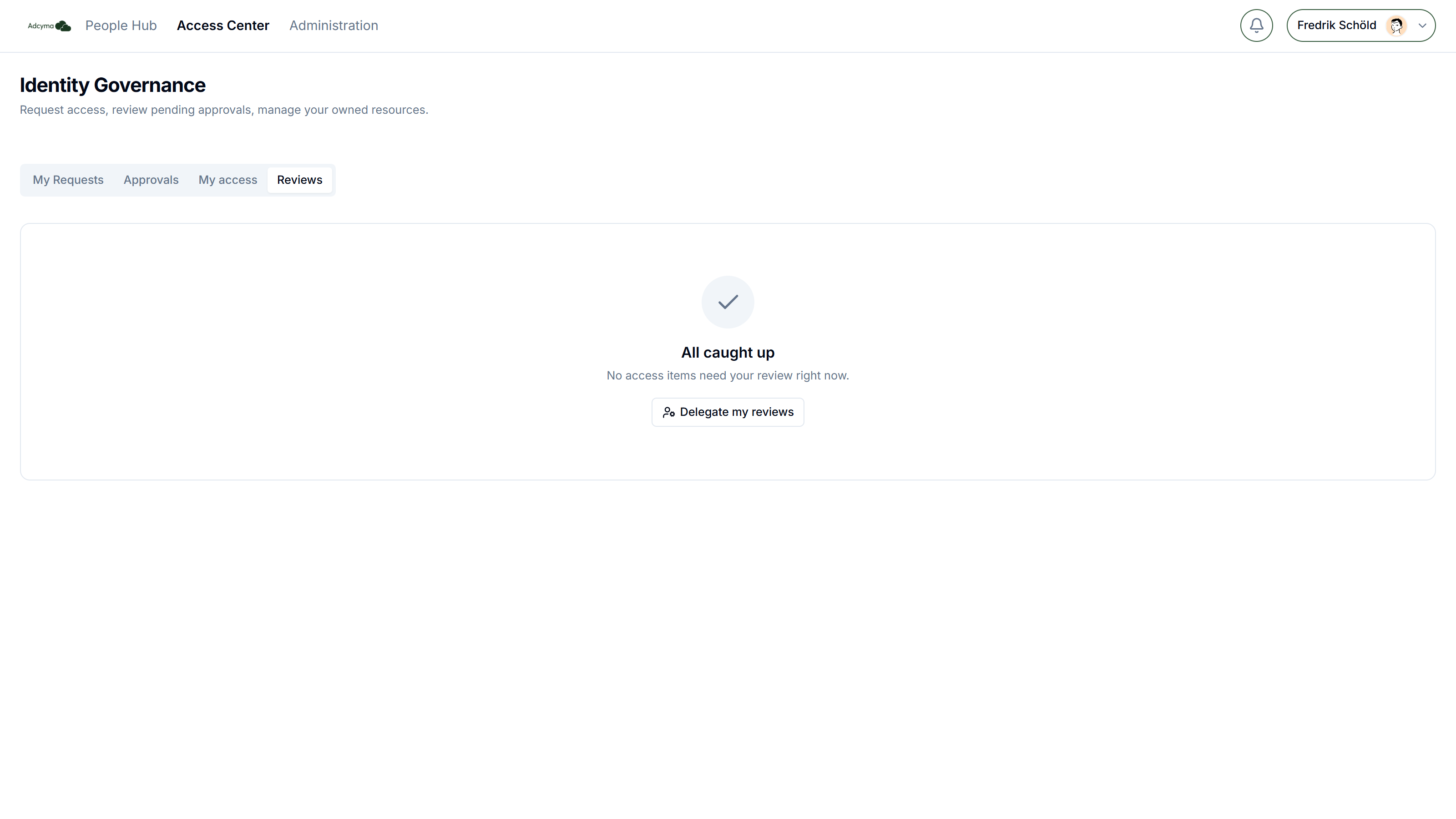
The toolbar has:
- Sort: Needs attention first puts items recommended for removal and items with high-risk signals at the top. Grouped keeps the natural order.
- Focus on flagged: hides items without risk signals or a removal recommendation.
- Delegate my reviews: see Delegating your reviews.
- Keyboard shortcuts: the list below.
You see an item when it's your turn: a manager sees their reports' items once the campaign reaches the manager stage, a resource owner once it reaches the resource owner stage, and the final approver sees every remaining item in the final stage.
Deciding on an item
Each item shows the group, the recommendation (Keep recommended or Remove recommended), risk signals, and the person's last sign-in. You answer Does ... still need ...? with Keep access, Remove access or Not sure.
On a flagged item, meaning one with a removal recommendation or any risk signal, the buttons are locked until you click Review why this is flagged and read the reasons. Items with no risk signals stay one click.
What each decision does in a campaign:
- Keep access passes the item on. The final approver's decision or sign-off is what finally keeps it.
- Remove access removes the person from the group right away and closes the item.
- Not sure passes the item on to the next stage without taking a position. If the manager and a later reviewer both say Not sure, the coverage report shows the item as unsure twice.
In micro reviews every decision is final. See Decisions are final.
Reasons
You have to give a reason when you:
- Remove access, or
- Keep access that Adcyma recommended removing
A text box opens for it. The reason goes into the review chain and the coverage report, so write it for an auditor who doesn't know the person: "Covers payroll during parental leave until June" works, "needed" doesn't.
Bulk decisions
Tick the boxes on items, or use the box on a person or a campaign to select everything under it. A bar appears with Keep selected and Remove selected. If any selected item needs a reason, you're asked for one and it's applied to all of them. Items the server rejects come back into your queue with a message.
Keyboard shortcuts
| Key | Action |
|---|---|
| j or ↓ | Next item |
| k or ↑ | Previous item |
| a | Keep |
| r | Remove (asks for a reason) |
| u | Not sure |
| x | Select or deselect |
| ? | Show or hide the shortcut list |
Take a closer look
The inbox notices when you are clicking through without reading. If you make four decisions in a row in under 1.2 seconds each, keep three flagged items in a row, or keep ten items in a row while items recommended for removal are still in your queue, a Take a closer look note appears above the list. You can dismiss it. It's a nudge, not a block, but how fast you decide is also recorded and shows up in the campaign's Reviewer integrity.
Signing off a campaign
When a campaign reaches the final stage, the final approver sees a Sign off & close button on that campaign's group in the inbox. Signing off keeps every item that hasn't been decided individually, then closes the campaign. It's a blanket keep and can't be undone. The coverage report marks items kept this way as certified at sign-off, so the auditor can tell them apart from items someone actually looked at.
Before signing off, the final approver can still decide items one by one, and should for anything flagged. The final approver's own access is never included in their sign-off. Only the final approver named on the campaign can sign off. A delegate can decide items but can't sign off.
Self-approval and escalation
Nobody reviews their own access in the manager or resource owner stage. If you would be, because you're your own manager in Entra ID or you own the resource, the item goes to the campaign's fallback reviewer instead. Without a fallback reviewer, it skips that stage. Items like this show a Delegated badge in the fallback reviewer's inbox.
If manager or resource owner items are still undecided 14 days after the campaign's due date, they're escalated to the fallback reviewer. The decision is marked Escalated in the review chain.
Delegating your reviews
Going on leave? Click Delegate my reviews in the Reviews toolbar to let a colleague cover your reviews for a period.
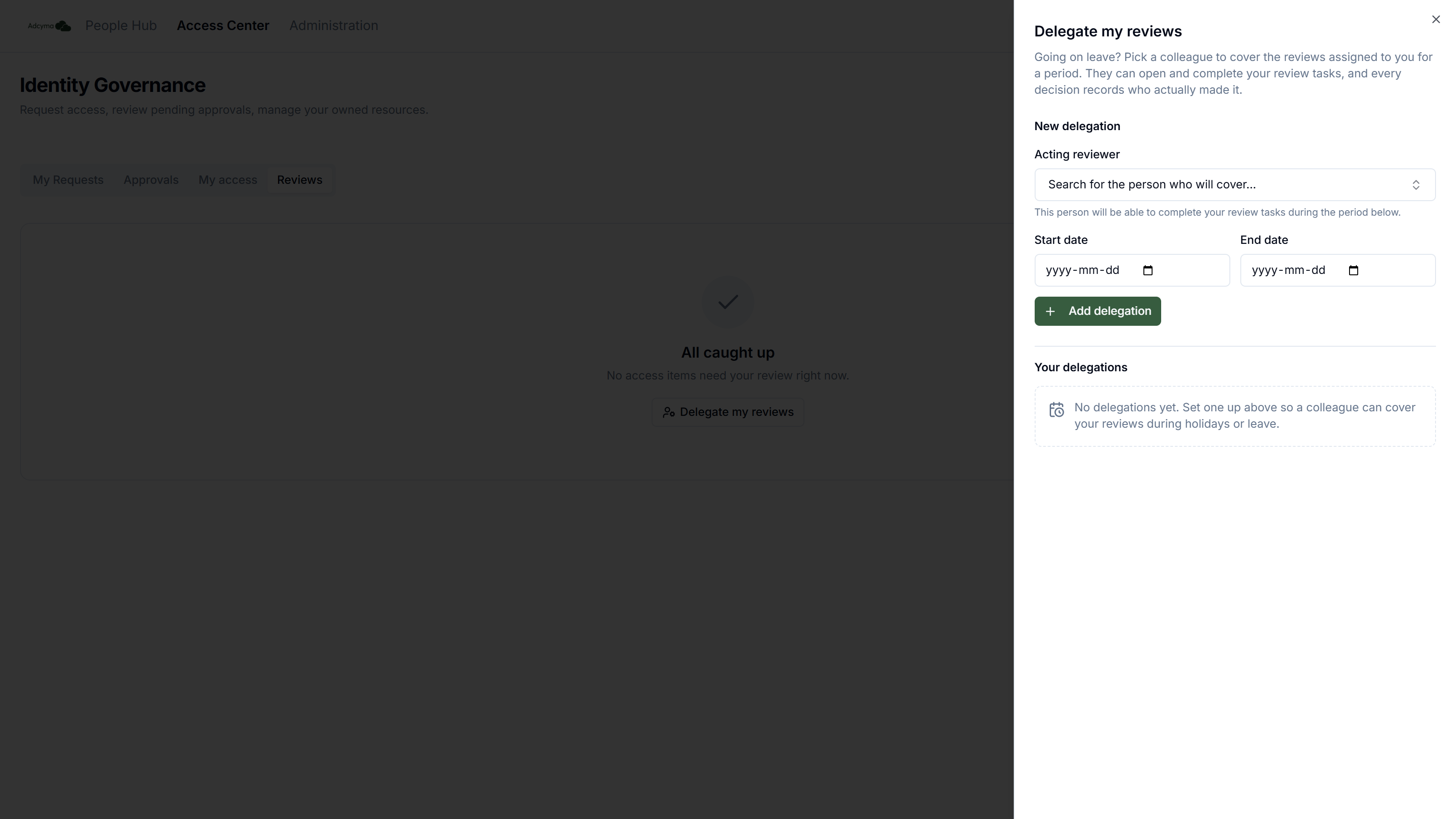
Fill in:
- Acting reviewer: the person who covers for you. They must have an Adcyma portal account, and it can't be you.
- Start date and End date: both days are included. The start must be before the end.
Click Add delegation. During that period the acting reviewer sees your review items in their own inbox, next to theirs, and can decide them. Every decision records who actually made it and whose behalf it was made on ("on behalf of" in the review chain, delegated by in the coverage report).
Some things can't be delegated:
- Signing off a campaign as final approver
- Answering a micro review about your own access
Your delegations lists the delegations you've set up, and the ones where you're covering for someone ("You cover for ..."). Only the person who created a delegation can remove it. Delegations in place before a campaign closed are included in its coverage report.
Recommendations and risk signals
Every item is scored when it's created. Each risk signal adds weight towards removal. At 30 or more, the recommendation is Remove. Below that it's Keep.
| Signal | What it means | Weight |
|---|---|---|
| Separation-of-duties conflict | The person also holds a group that conflicts with this one under your SoD Rules | 50 |
| Dormant | The person hasn't signed in for 90 days, or has never signed in | 40 |
| No request on record | No access request or role template in Adcyma explains why they have it | 30 |
| External user | A guest account from outside your organization | 20 |
| Recent role change | Their job title changed since the last run of a recurring campaign | 20 |
| Recent department change | Their department changed since the last run of a recurring campaign | 20 |
| Privileged | The resource gives admin-level access | 15, or 45 if also dormant |
Dormancy is based on the person's last sign-in to your tenant, not on use of that particular group. Treat it as a hint about the account, not proof that this access is unused.
For items recommended for removal, the inbox shows the reasons and how strong the signal is: Weak (under 33), Moderate (33 to 65) or Strong (66 and over). Separation-of-duties conflicts and privileged access are shown in red.
Items are auto-certified, and never reach a reviewer, when there are no risk signals at all, the person has signed in recently, and either:
- The access comes from a role template, or
- It's a recurring campaign and nothing changed since the last review
Troubleshooting
If someone can't see the My access or Reviews tab:
- Check that they have the Access Center User role
- Check that Access Reviews is switched on for your tenant (the Access Reviews page shows up under Administration)
If a manager says their inbox is empty:
- The campaign may still be in self review. Their items arrive when the manager stage opens.
- The person under review may have a different manager in Entra ID than you expect. Managers come from the directory.
If the acting reviewer can't see delegated items:
- Check that today falls between the start and end date
- Check that the delegation was created by the reviewer who is away, not by the person covering