

Dynamic Groups
Dynamic Groups let you define rules based on user attributes (like department, job title, or location) and have Adcyma automatically maintain the membership of Microsoft Entra Security Groups or Exchange Distribution Lists. No more manually adding or removing users.
When to Use Dynamic Groups
Good candidates for dynamic groups:
- Department-based distribution lists that update as people change roles
- Security groups for office locations that adjust as people move
- Project teams that need specific tool access based on attributes
- Compliance groups that must include all users meeting certain criteria
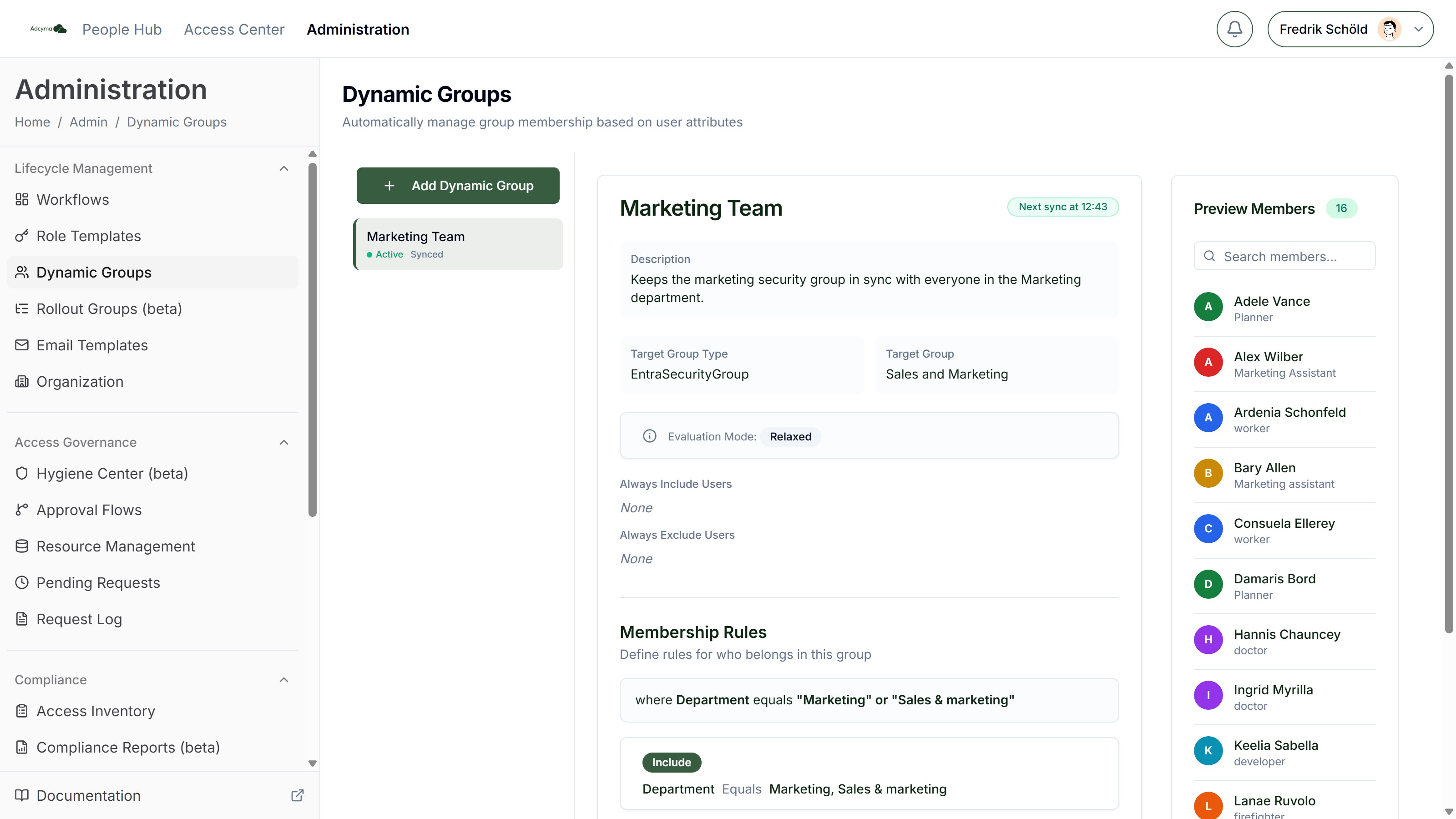
For example, you could create a "Marketing Team" group that automatically includes anyone with Department = Marketing, while manually excluding interns and including the CMO (who might be in a different department).
Setting Up Your Dynamic Group
Basic Configuration
Group name Pick a descriptive name that indicates what the group is for. Something like "Marketing-FullTime-Stockholm" is more helpful than "Group1".
Description (Optional) Document the group's purpose, any special rules, or important notes for future administrators. This is especially valuable for complex conditional logic.
Target Group Type Select the type of group you're managing:
- Entra Security Group (for access permissions and security policies)
- Exchange Distribution List (for email distribution)
Target Group Choose the existing group that will be updated, or click Create New Security Group in the picker to make a new Entra Security Group. A new group is only created in Entra when you save the dynamic group. The dynamic group configuration controls the membership of this group.
Two kinds of groups can't be picked as a target:
- Native Entra dynamic groups. They are shown greyed out as Entra Dynamic (read-only), because Entra already manages their membership with its own rule.
- The group Adcyma itself uses for managed users.
Dynamic Group Owner (Optional, requires the Identity Governance add-on) Assign an owner to this group. See Owners below.
Evaluation Adcyma evaluates dynamic groups on a schedule, every 15 minutes. The group header shows Next sync at HH:MM so you know when the next automatic update will run.
Membership Rules
Rules are built with Add rule. Each rule has three parts: a Field (the user attribute), an Operator, and a Value. Rules are combined with AND logic, which the editor shows as an "and" divider between rules. A user has to satisfy every rule to match.
Include and Exclude rules
Each rule starts with a selector set to Include or Exclude:
- Include keeps users who match the condition.
- Exclude keeps users who do not match the condition. It negates the whole rule.
Because rules are ANDed, an Exclude rule works as a filter on top of your other rules. Include: Department equals "Sales" AND Exclude: Employee Type equals "Intern" gives you everyone in Sales except interns. The summary above the rules spells this out as where Department equals "Sales" AND NOT where Employee Type equals "Intern".
Fields and operators
The operators you can pick depend on the field:
| Field | Type | Operators |
|---|---|---|
| Account Enabled | Yes/No | Equals, Not Equals |
| Is Manager | Yes/No | Equals, Not Equals |
| Usage Type | Text | Equals, Not Equals |
| Preferred Language | Text | Equals, Not Equals |
| Employee Type | Text | Equals, Not Equals |
| Office Location | Text | Equals, Not Equals |
| Manager | Text | Equals, Not Equals |
| ZIP or Postal Code | Text | Equals, Not Equals |
| Usage Location | Text | Equals, Not Equals |
| Job Title | Text | Equals, Not Equals, Contains, Starts With, Ends With |
| Company Name | Text | Equals, Not Equals, Contains, Starts With, Ends With |
| Department | Text | Equals, Not Equals, Contains, Starts With, Ends With |
| Street Address | Text | Equals, Not Equals, Contains, Starts With, Ends With |
| City | Text | Equals, Not Equals, Contains, Starts With, Ends With |
| State or Province | Text | Equals, Not Equals, Contains, Starts With, Ends With |
| Country or Region | Text | Equals, Not Equals, Contains, Starts With, Ends With |
| Created Date | Date | Equals, Less Than, Greater Than, Less Than or Equal, Greater Than or Equal |
| Employee Hire Date | Date | Equals, Less Than, Greater Than, Less Than or Equal, Greater Than or Equal |
How values work:
- Yes/No fields have no operator picker. You flip a switch to True or False.
- Text matching is case-insensitive.
Department equals "sales"matches "Sales" and "SALES". - Picking several values. For Company Name, Department, Job Title, Office Location, Manager, Employee Type, City, State or Province, Country or Region, Usage Location and Preferred Language, the Equals and Not Equals operators open a picker with the values that exist in your directory. You can pick more than one, and the rule matches if the user has any of them (the label changes to Values (any of)). For Manager, the list shows people who are managers.
- Free text. Contains, Starts With and Ends With take a single typed value.
Not Equals with more than one value matches almost everyone: a user in Sales is "not equal to HR", so they match Not Equals "Sales", "HR". To leave out several departments, use an Exclude rule with Equals and pick the values there instead.
Date fields and relative age
Created Date and Employee Hire Date take either an exact date or a relative age. Use the Switch to Relative / Switch to Date button in the value box to choose.
- Exact Date compares against a calendar date. Less Than means before that date, Greater Than means after it.
- Relative Age compares how long ago the date was. You enter a number and pick Days, Weeks, Months or Years. Greater Than means older than, Less Than means more recent than.
<!-- TODO screenshot: /img/DynamicGroupsRelativeAgeRule.png | URL: https://portal.adcyma.com/administration/dynamic_groups | open an existing group, click Edit, show a rule card for Employee Hire Date or Created Date with Relative Age (number + Days/Weeks/Months/Years) visible; cancel without saving -->
So Employee Hire Date Greater Than 6 Months matches people hired more than six months ago, and Created Date Less Than 30 Days matches accounts created in the last 30 days.
Under the hood a relative value is stored as AGE:<number><unit>, for example AGE:90D, AGE:12W, AGE:3M or AGE:2Y. You'll see that format in exports and logs. A few details worth knowing:
- Months and years are counted in calendar months, so
AGE:3Mmeans three full calendar months, not 90 days. - Dates in the future never match a relative rule.
- Users with no value in the date field never match a date rule, in either direction.
- Use Greater Than or Equal / Less Than or Equal rather than Equals with relative ages. Day and week ages are measured to the minute, so an Equals match on them is close to impossible.
Common examples
Department equals "Marketing": all marketing team membersJob Title contains "Manager": everyone with manager in their titleOffice Location equals "Stockholm": all Stockholm-based employeesDepartment equals "Sales"ANDJob Title contains "Director": only sales directorsEmployee Hire Date Greater Than 3 MonthsANDAccount Enabled equals True: enabled staff who are past a three-month probationInclude: Department equals "Finance"ANDExclude: Employee Type equals "Consultant": finance employees, without consultants
Evaluation Mode: Strict or Relaxed
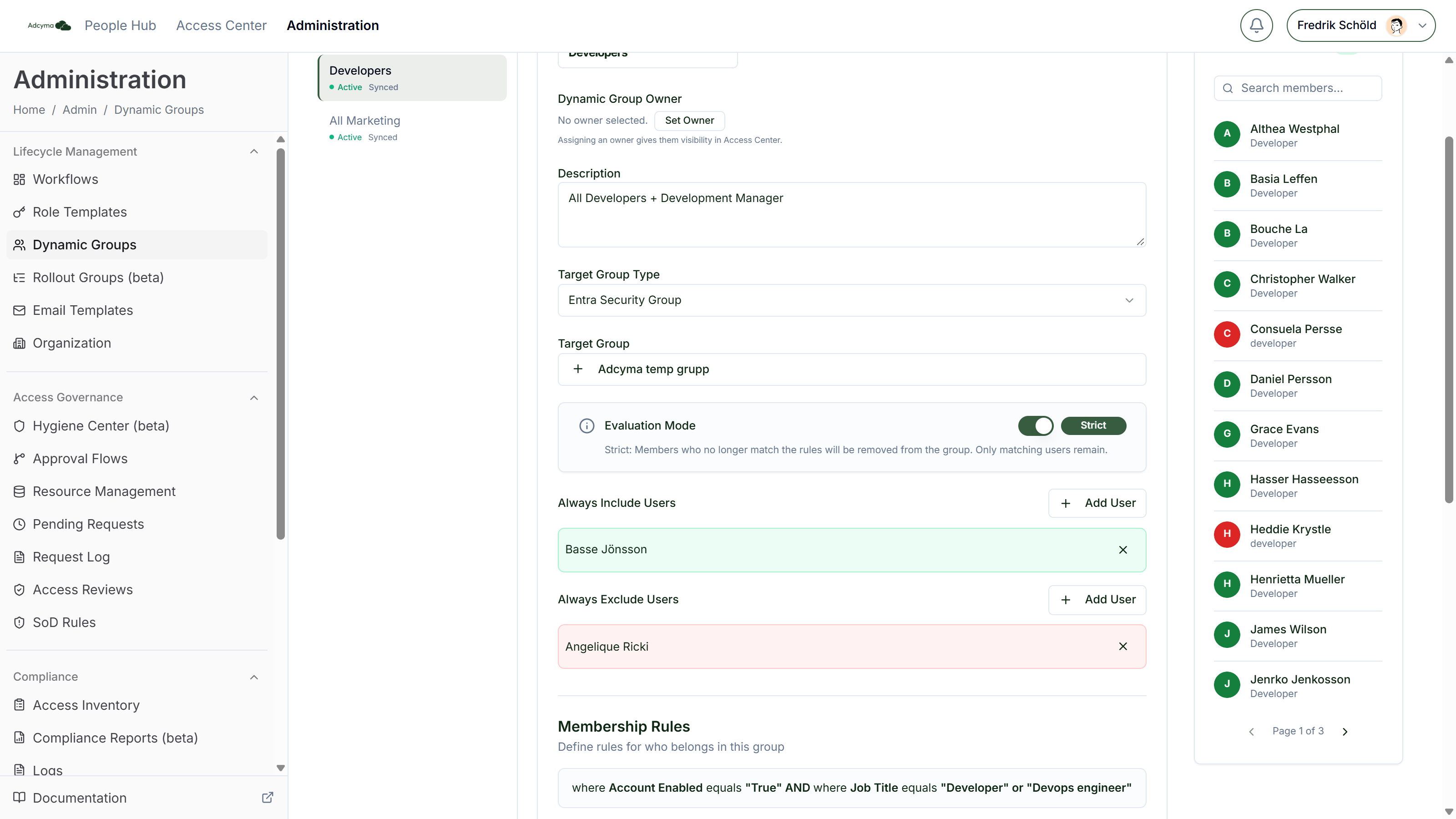
The Evaluation Mode switch decides what happens to people who are in the target group but don't match your rules. It only affects removals. In both modes, new matching users are added.
Relaxed (the default) Existing members stay in the group even if they no longer match. New matching users are added automatically. Nobody is removed, except users on the Always Exclude list. Use Relaxed when you're adding rules to a group that already has hand-picked members, or when removing someone by mistake would hurt.
Strict The group ends up with exactly the users who match the rules, plus Always Include, minus Always Exclude. Members who no longer match are removed on the next sync. Use Strict for groups that should be 100% rule-based, such as licence or access groups that must shrink when people change department.
| Situation | Relaxed | Strict |
|---|---|---|
| User matches the rules | Added | Added |
| Existing member stops matching | Stays | Removed |
| Member added by hand in Entra or Exchange, doesn't match | Stays | Removed |
| User on Always Include | Added | Added |
| User on Always Exclude | Removed | Removed |
Strict Mode removes everyone who doesn't match. If you save a Strict group with no complete rules, the group is emptied down to the Always Include list on the next sync. Check the Preview Members panel before you save.
In the Preview Members panel, Relaxed groups show members who are kept but don't match as "Existing member retained (relaxed mode)".
Manual Overrides
Always Include Users Specific users who should be in the group regardless of whether they match the rules. Common uses:
- Executives who need access but don't fit standard criteria
- External consultants with special roles
- Users with temporary elevated permissions
Always Exclude Users Users who should never be in the group, even if they match all rules. They are also removed in Relaxed mode. Useful for:
- Suspended employees who still exist in the system
- Test accounts that shouldn't receive group benefits
- Users with conflicting access requirements
If a user is on both lists, exclusion wins.
Owners
Requires the Identity Governance add-on. Without it, the owner fields are hidden.
Set an owner with Set Owner (or Change Owner) under Dynamic Group Owner. The owner sees the group in the Access Center under Owned Resources, including the Always Include and Always Exclude lists and the rules (read-only).
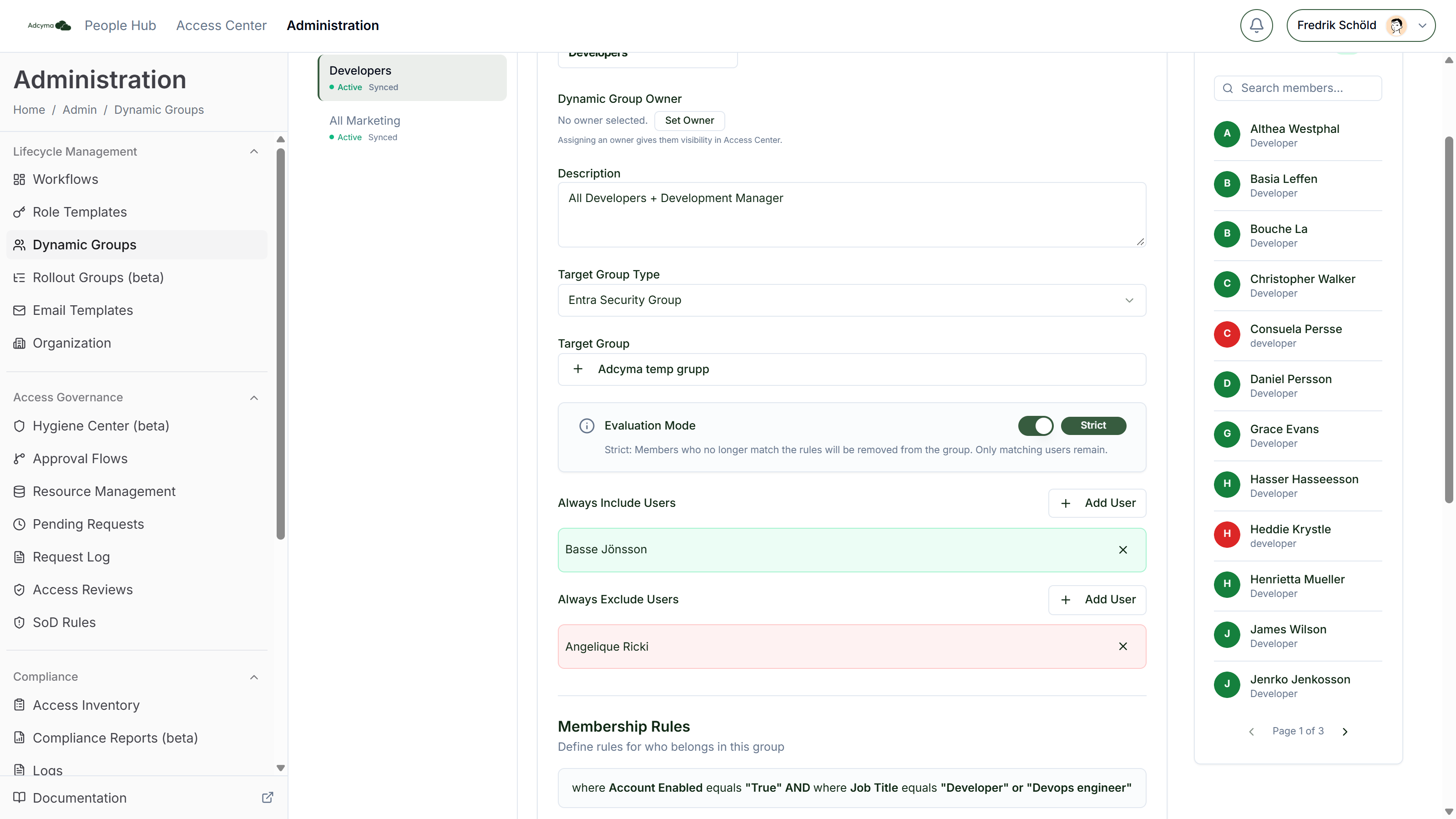
Turn on Allow owner to manage include/exclude users to let the owner handle exceptions without an admin:
| Setting | What the owner can do |
|---|---|
| No owner | Nothing. The group isn't shown in the Access Center. |
| Owner, switch off | Sees the group, its rules and overrides. Read-only. |
| Owner, switch on | Can also use Add Include User and Add Exclude User to change the Always Include and Always Exclude lists. |
Owners can't change the rules, the evaluation mode or the target group. Those stay with administrators. When an owner adds someone to Always Include who is already on Always Exclude, Adcyma takes them off the exclude list so the two lists don't conflict.
Previewing Membership
The Preview Members panel shows which users match your current settings as you edit, with a count, a search box and paging. Each user is listed with why they're in: which rules they matched, "Manually added (Always Include)", or "Existing member retained (relaxed mode)". Check it before saving, especially in Strict Mode.
Managing Existing Groups
Enable and disable
Each dynamic group has an Enabled / Disabled switch in its header. A disabled group keeps its rules, but isn't evaluated and its members aren't synced. The header shows Not syncing instead of the next sync time. A group must have a target group before you can enable it.
Duplicate
Duplicate makes a copy called "Copy of [name]" with the same rules, evaluation mode, overrides and owner. The copy starts disabled and with no target group, so it can never write members into the original's group by accident. Pick a target group, save, then enable it.
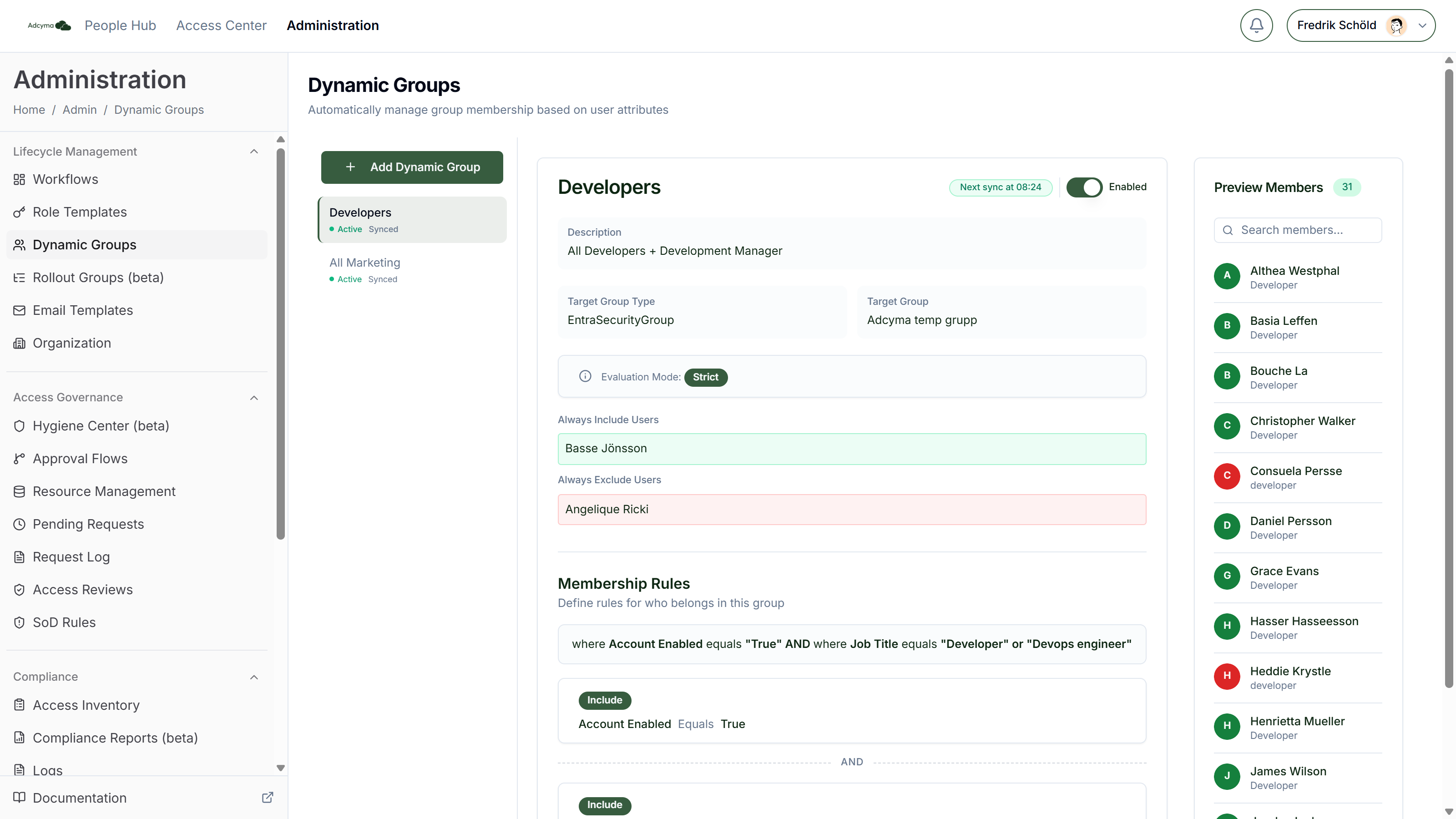
This is the quickest way to build a set of similar groups, for example one per office.
Delete
Delete removes the dynamic group configuration after a confirmation. It can't be undone.
Best Practices
Start with basic conditions and add complexity gradually. Test each rule before moving to production.
Name your groups clearly. Something like "Finance-Managers-AllOffices" tells you exactly who should be included.
Use the description field to explain complicated conditional rules for future reference.
Start new groups in Relaxed mode, check the result after the first sync, then switch to Strict if the group should be fully rule-based.
Periodically review your dynamic groups to make sure they still match your organizational needs.
Troubleshooting
If users aren't being added:
- Verify user attributes match your conditions exactly. Matching ignores case, but not spelling or extra spaces.
- For date rules, check that the user actually has a value in the date field. Empty dates never match.
- Confirm the user exists in your directory with the expected attributes
If members are unexpectedly removed:
- Check whether the group is in Strict Mode
- Check if users are in the "Always Exclude" list
- Verify user attributes haven't changed
If the group isn't updating:
- Check that the group is Enabled. Disabled groups show Not syncing.
- Dynamic group evaluations run every 15 minutes. Check the "Next sync at" time in the group header.
- Check that the target group is correctly selected