

Role Templates
Role Templates let you define standardized access packages that get applied through Workflows. Each template bundles the directory group memberships a user needs for a given role.
They work well for scenarios where Dynamic Groups aren't enough, like when you need to bundle complex access permissions that go beyond simple attribute-based rules, or when access depends on specific role assignments rather than user attributes like department or job title.
Important: Role Templates define access configurations but do not provision access immediately. Templates are only applied when activated through a Workflow.
Page Layout
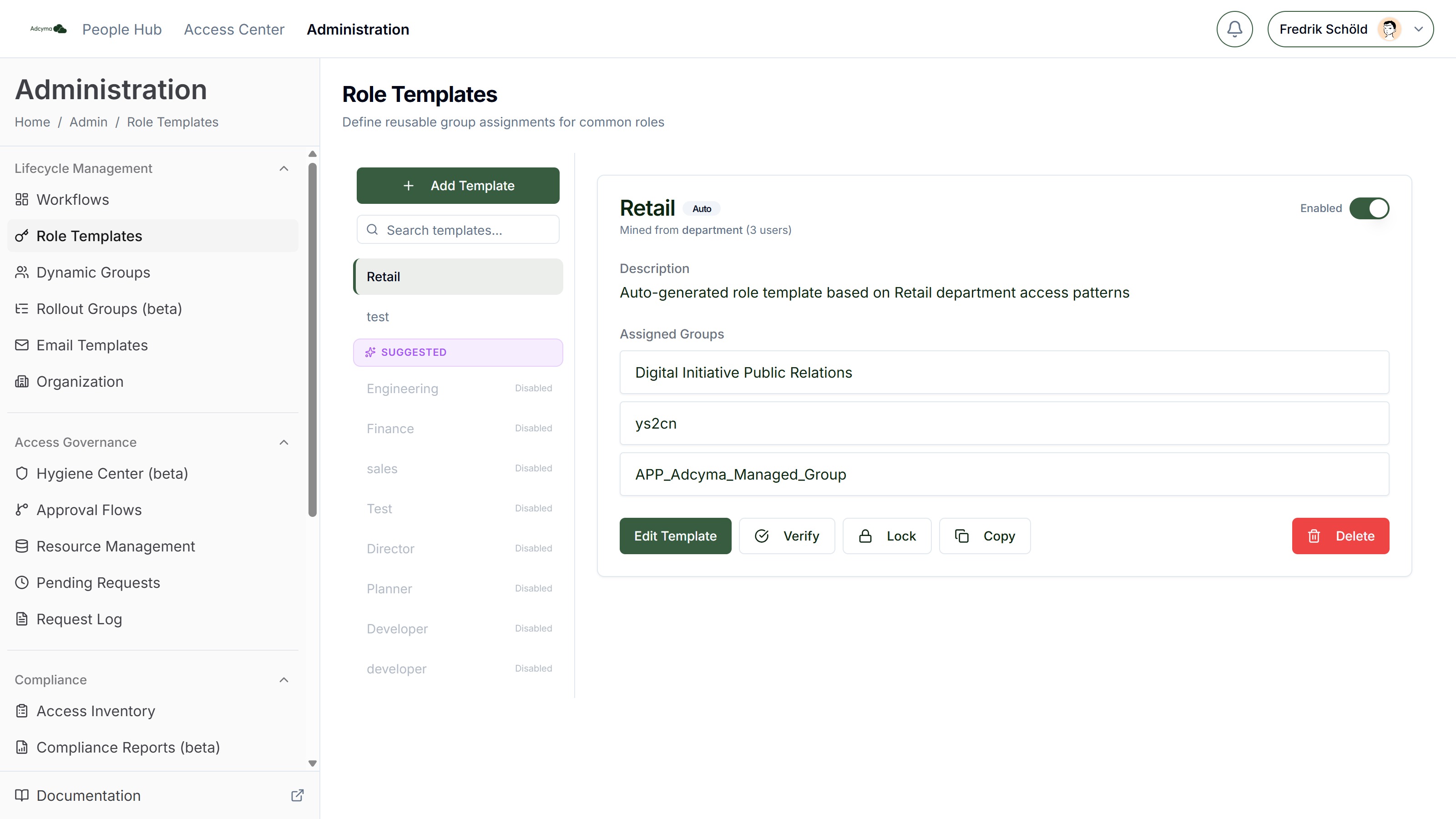
The sidebar lists your templates with an Add Template button and a search box. Templates suggested by Adcyma appear in a separate Suggested section until you enable them. Selecting a template shows its description, assigned groups, and management actions.
What You Can Do
Create and edit templates Build new templates with specific group assignments, or update existing ones as access requirements change. Each template has an Assigned Groups section where you search for and add the groups that should be granted when the template is applied. Groups sourced from on-premises Active Directory are marked with an "AD" badge.
Enable/Disable Toggle templates on or off without deleting them. Disabled templates won't be applied by workflows until re-enabled.
Copy Duplicate an existing template as a starting point for a new one. Useful when you need variations of a similar access package.
Verify Mark a template as reviewed and approved. Verified templates show a badge with the verifier's name and date. This is useful for compliance workflows where templates need sign-off before being used.
Delete Permanently remove a template after confirmation. Locked templates cannot be deleted until they are unlocked.
Auto-Generated Templates
Adcyma can mine your existing directory configuration and suggest Role Templates based on common group assignment patterns. These auto-generated templates show an "Auto" badge and indicate which attribute they were derived from and how many users matched the pattern (for example, "Mined from department (3 users)").
You can verify auto-generated templates to mark them as reviewed, and lock them to prevent automatic syncs from changing their group assignments. Locked templates show a "Locked" badge and their groups are read-only until unlocked. You can also edit them and convert them into manually managed templates.
Example: IT Department New Employee Role
A "New Employee - IT Department" role template might include:
- Corporate email account and distribution lists
- IT support team and technical staff group memberships
- Access to the internal ticketing system, monitoring tools, and development environments
- VPN access and appropriate security clearance levels
When a Workflow assigns this template during onboarding, the new IT employee gets all the access they need right away.
Benefits of Role-Based Access
When you use Role Templates in your Workflows, every user with the same role gets identical access, which removes the guesswork from manual permission assignments. You also get a clear audit trail of role-based access, making compliance reviews much simpler. And since templates apply the principle of least privilege consistently, your security posture stays solid as you scale.