

Campaigns
A campaign is one access review with a defined scope, a due date and a final approver. You create it as a draft, launch it, and it closes when the final approver signs off or an admin ends it.
The Campaigns list
The Campaigns table on the Access Reviews page lists every campaign, newest first:
- Status: Draft, Preparing (the snapshot is running), Snapshot failed, In review, or Closed. A Recurring badge shows campaigns that repeat, and a red badge shows the number of failed revocations.
- Review progress: the current stage and how many items have been reviewed out of the total.
- Items and Due date. A campaign past its due date that is still in review is marked (overdue).
From the Actions column you can Launch a draft (or Relaunch a failed snapshot), View a campaign, End a running one, or delete one that isn't closed.
Creating a campaign
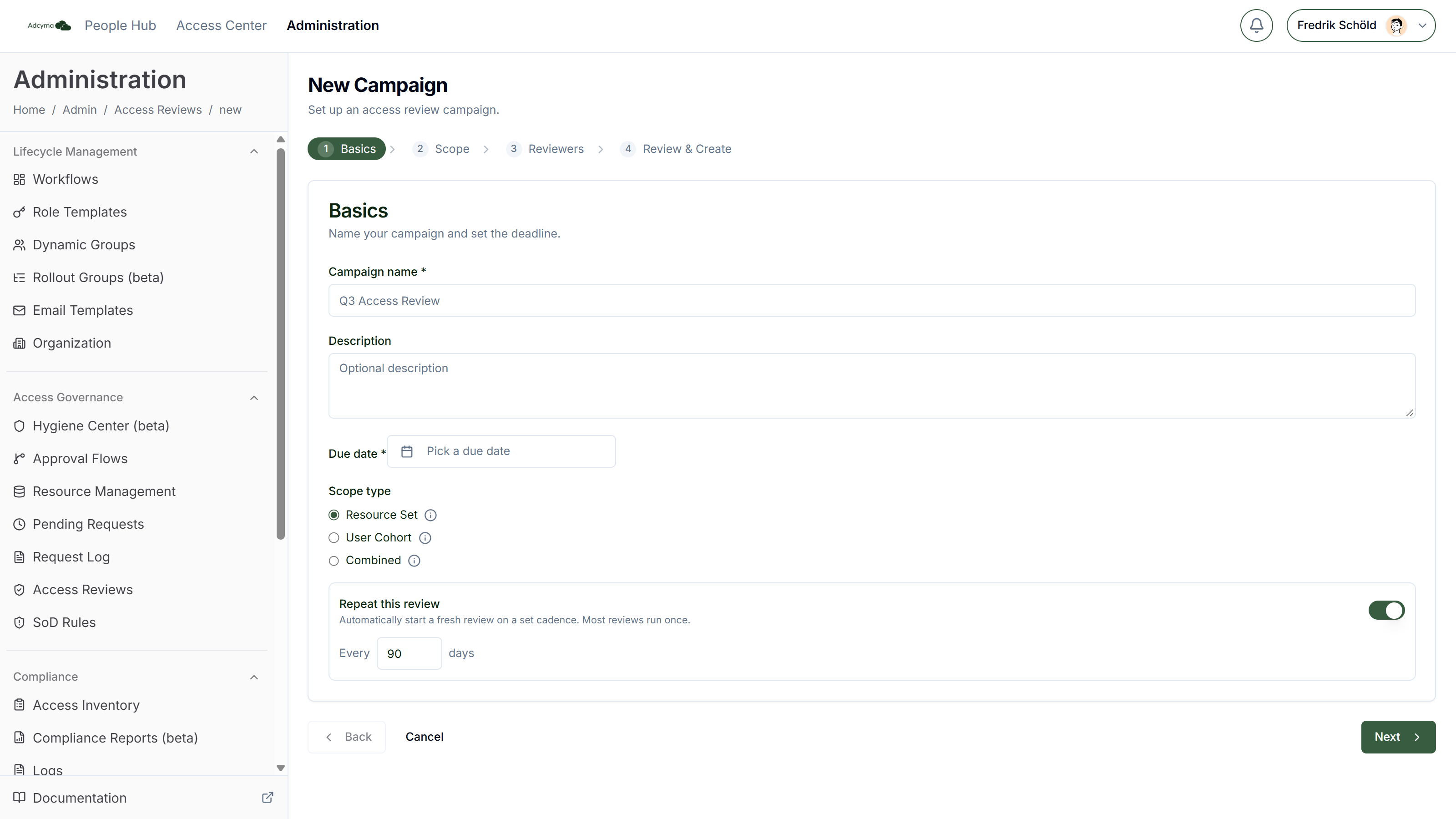
Click New campaign. The wizard has four steps: Basics, Scope, Reviewers, and Review & Create.
Basics
Campaign name and Due date are required. The due date can be today or later. A Description is optional.
Scope type decides what the campaign covers:
- Resource Set: everyone with access to the resources you pick gets reviewed.
- User Cohort: all access held by a set of people, picked by department or job title.
- Combined: both of the above in one campaign. Everyone with access to the resources you pick is reviewed, and so is all access held by the people you pick. An item that falls in both is only reviewed once.
Repeat this review turns the campaign into a recurring series. Enter how many days apart the runs should be (90 is pre-filled). See Recurring campaigns below. Most reviews run once, so it's off by default.
Scope
What you see depends on the scope type.
Who to review (User Cohort and Combined) lets you pick Departments and Job titles. The values come from your Organization settings, and you can't type your own. That's on purpose: a value nobody has would silently match nobody. Pick at least one. If you pick both departments and job titles, a person has to match both.
Select resources (Resource Set and Combined) lists the resources from Resource Management. Search by name or description and tick the ones you want. A resource that isn't connected to a group yet can't be selected.
Add resources by ID covers groups that aren't set up as resources. Paste the Entra group object ID and click Add. Pick at least one resource or ID.
The snapshot reads group memberships from Adcyma's synced copy of your directory. A group ID that hasn't been synced yet is skipped.
Reviewers
Final approver is required. This person signs off the campaign at the end and can see and decide every item in that stage.
Fallback reviewer (for self-approval conflicts) is optional, but we recommend setting one. The fallback reviewer:
- Reviews items where the normal reviewer would be reviewing their own access. That happens when someone has no manager above them in Entra ID (they are their own manager) or owns the resource in question.
- Receives manager and resource owner items that are still undecided 14 days after the due date.
Without a fallback reviewer, conflicted items skip that stage and overdue items are not escalated.
You don't pick managers or resource owners here. Managers come from the manager attribute in your directory, and resource owners come from the Resource Owner set on each resource in Resource Management.
Review & Create
Check the summary and click Create Campaign. The campaign is saved as a draft. Nothing is sent to anyone until you launch it from the Campaigns list.
What happens at launch
Launching starts the snapshot. For a one-off campaign Adcyma first syncs from Entra ID. Then it builds one item per person and group in scope, scores each item, and auto-certifies the low-risk ones. When the snapshot is done the campaign moves to In review and the self review stage opens. Everyone with items gets a notification and an email.
If the snapshot fails, the status changes to Snapshot failed and the error is shown on the campaign. Click Relaunch to try again. A relaunch starts from scratch, so you never end up with duplicate items. A snapshot that is still running after two hours is marked as failed by the daily job.
Stages
| Stage | Who reviews | Moves on when |
|---|---|---|
| Self review | Each person, their own access | Everyone has answered, or seven days have passed |
| Manager | The person's manager (or the fallback reviewer) | Every item with a manager has a manager decision |
| Resource owner | The resource's owner (or the fallback reviewer) | Every item with an owner has an owner decision. Skipped if no pending item has an owner |
| Final approver | The final approver | The final approver signs off, or an admin ends the campaign |
Items without a manager, or on a resource without an owner, are not held up by that stage. They pass straight on.
A Remove decision at any stage removes the access right away and closes the item. Keep and Not sure pass the item on to the next stage. The item is finally kept when the final approver decides on it or signs off. See Reviewing Access for what each reviewer sees.
Recurring campaigns
When you turn on Repeat this review, the campaign becomes the first run of a series:
- The next run starts automatically the set number of days after the previous run closed. It's launched straight away, not left as a draft.
- A new run never starts while another run in the series is still open. A run with a failed snapshot doesn't block the series.
- Each run is compared with the most recent closed run. Access that is unchanged and in active use is auto-certified, so reviewers only see what's new or what has changed. A run that was ended while its snapshot was still running is not used as the comparison.
- Each run's due date is the same number of days after it starts.
Each item in a later run shows what changed since the last review: New access since last review, Role changed, Department changed, Manager changed, or No change since last review. A role or department change also counts as a risk signal.
The campaign page
Click a campaign name or View to open it.
Status and progress
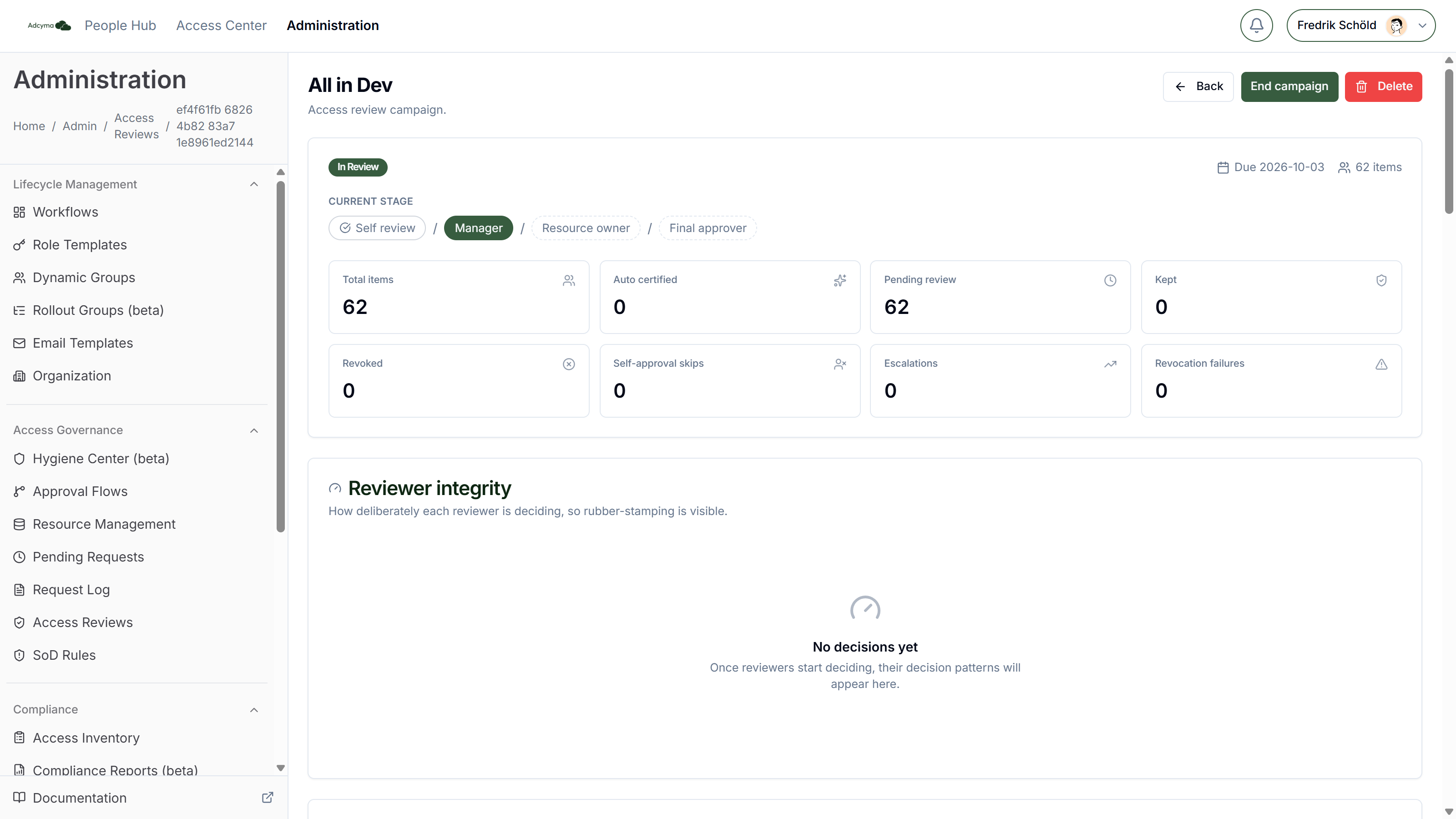
The header shows the status, the cadence for a recurring campaign (Every N days), a Recurring run badge for runs after the first, any revocation failures, the due date and the number of items. While the campaign is in review, Current stage shows where it is: Self review / Manager / Resource owner / Final approver.
The tiles summarize the items:
- Total items and Auto certified
- Pending review, Kept and Revoked
- Self-approval skips: how many times an item was taken away from someone who would have reviewed their own access
- Escalations: items handed to the fallback reviewer because they were overdue
- Revocation failures: removals that hadn't taken effect three days after they were made. These turn red
Revocation failures
When a reviewer removes access, Adcyma removes the group membership and then checks the next directory syncs. If the person is still a member three days later, the item is marked as failed and counted here and on the Campaigns list. Look the membership up in Entra ID, remove it by hand if it's still there, and find out why the removal didn't stick. Check the Logs for the failed task. Whatever blocked it will block the next one the same way.
Reviewer integrity
The Reviewer integrity card shows how carefully each reviewer is deciding, so rubber-stamping is visible while the campaign is still running. For each reviewer it shows:
- Decisions: how many items they decided, across all stages
- Keep rate: the share of decisions that were Keep
- Avg time: the average time spent on an item before deciding. Bulk sign-offs aren't timed, so they don't count. Not timed means none of their decisions carried a time
- Fast decisions: decisions made in under 1.2 seconds
- Flagged keeps: items Adcyma recommended removing that the reviewer kept anyway
- Risk: High, Medium or Low
Risk is worked out like this:
| Risk | Rule |
|---|---|
| High | Keep rate of 90% or more, and at least one flagged keep or an average under 1.2 seconds |
| Medium | Keep rate of 80% or more, or at least half of the decisions were fast |
| Low | Everything else |
A reviewer with fewer than five decisions is always Low, because there isn't enough to judge. Reviewers are sorted with the highest risk first.
A High rating isn't proof of anything. A manager with a small, stable team can honestly keep everything. It tells you whose decisions to look at before you sign off.
Items
The Items table lists every item with the user, group, source, risk signals, recommendation and outcome. Filter by outcome: Pending, Auto certified, Kept, Revoked, Auto revoked (offboarded), or Auto revoked (group deleted).
Click a row to see why it was recommended and how it was decided:
- Recommendation: the reasons behind Keep or Remove and how strong the signal is
- Risk signals: each flag, with an explanation on hover
- Access context: last sign-in, how the access was granted (Access request, Role template, or Directly assigned), what changed since the last review, and the group
- Review chain: every decision on the item in order, with who made it, when, the reason they gave, and whether it was escalated or made on someone's behalf
Ending, deleting and exporting
End campaign closes a running campaign right away. Decisions already made are kept, items still waiting stay undecided, and the coverage report becomes available. You can also end a campaign while its snapshot is still running. It is then kept as a closed record and nobody is asked to review anything.
Delete permanently removes a campaign that isn't closed, with all its items and decisions. Nothing is kept for audit. If you want the record, end the campaign instead. A closed campaign is an audit record and can't be deleted.
Only admins can end or delete campaigns.
Coverage report
A closed campaign has Export JSON and Export CSV buttons. The export holds:
- A summary: total items, auto-certified, removed by the users themselves, self reviews that timed out, reviewed by a person, kept, revoked, revocation failures, self-approval skips, escalations, items marked unsure twice, and exceptions (decisions that went against the recommendation)
- The full review chain for every item, with the recommendation, each stage's decision, reviewer, time, reason, whether it was escalated or delegated, and whether the item was kept by the final approver's blanket sign-off rather than looked at individually
- Revocation status for every removed item, including when the removal was verified
- Reviewer integrity per reviewer
- The review delegations that were in place
The CSV has one row per item and is built to open cleanly in Excel. The JSON has everything, including the delegations and reviewer integrity. Give the auditor the CSV and keep the JSON.
Best practices
- Always set a fallback reviewer. Without one, your CEO's access and every overdue item have nowhere to go.
- Keep the first campaign small. One department or a handful of resources shows you how your managers respond before you send it to everyone.
- Give people enough time. Self review is seven days, and managers and owners need time after that. Four weeks is a reasonable due date for a first campaign.
- Look at Reviewer integrity before the final approver signs off, not after.
- Check Revocation failures after the campaign closes. A review where the removals didn't happen is worse than no review.