

Access Reviews Overview
An access review checks that the people who have access to something still need it. Adcyma takes a snapshot of who has access to what, scores every item for risk, and sends it to the people who can confirm or remove it. When the review is done you have a record of who decided what, and when, that you can hand to an auditor.
You find it under Administration > Access Governance > Access Reviews.
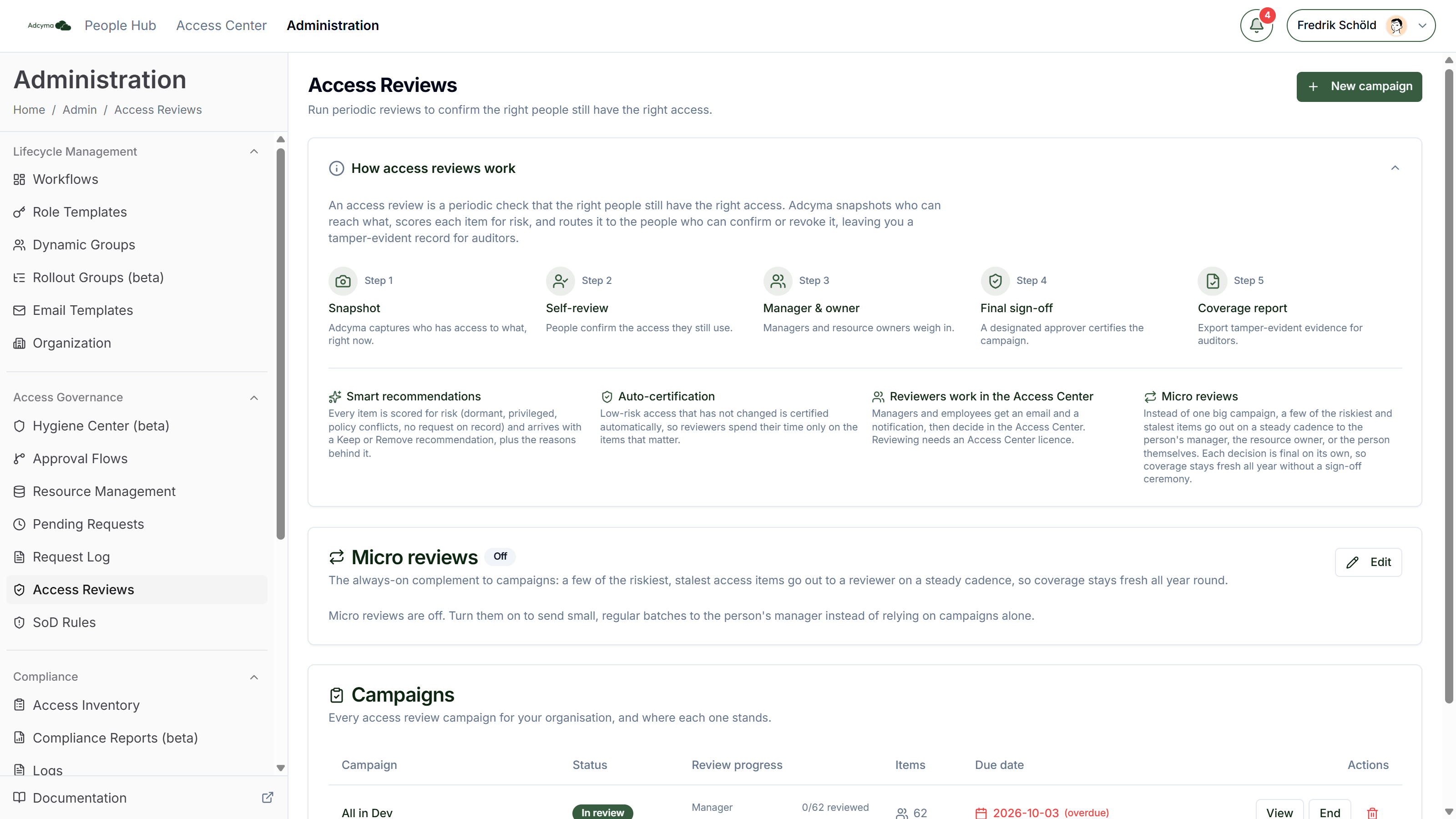
Access Reviews is switched on per tenant. If you can't see it in the Administration menu, contact us. Admins manage campaigns. Everyone who reviews or confirms access does it in the Access Center, so they need the Access Center User role (or Admin); see User Permissions.
Two ways to review
Campaigns are the classic periodic review. You pick what to review, set a due date and a final approver, and launch. The campaign runs through its stages and closes with a sign-off and a coverage report. A campaign can run once or repeat on a cadence. See Campaigns.
Micro reviews (continuous reviews) run all year. A few of the riskiest items go to one reviewer at a time on a steady cadence, and each decision is final on its own. There is no sign-off at the end, because there is no end. See Micro Reviews.
Most organizations use campaigns for the quarterly or yearly review the auditor asks for, and micro reviews to keep coverage fresh in between. You don't have to use both.
How a campaign works
- Snapshot. Adcyma captures who has access to what, right now. For a one-off campaign it syncs from Entra ID first so the snapshot is current.
- Self review. Each person sees their own access and confirms what they still use. This stage is open for seven days.
- Manager and resource owner. Managers review their reports' access. Then resource owners review the access to resources they own. A stage with nothing to review is skipped.
- Final sign-off. The final approver you named on the campaign reviews what's left and signs off.
- Coverage report. The closed campaign can be exported as JSON or CSV, with the full decision chain for every item.
Key concepts
Item. One person's access to one group. A campaign with 40 people who each have access to 3 groups in scope has 120 items.
Recommendation. Every item comes with Keep or Remove, based on risk signals such as dormancy, admin-level access, separation-of-duties conflicts, and whether there is a request on record. Reviewers see the reasons, not just the verdict. See Reviewing Access.
Auto-certification. Low-risk access that is in active use and either comes from a role template or hasn't changed since the last review is certified automatically. Reviewers never see it, so they spend their time on the items that matter.
Self-approval prevention. Nobody reviews their own access in a manager or resource owner stage. Those items go to the campaign's fallback reviewer instead, or skip that stage if there isn't one.
Revocation. When someone chooses to remove access, Adcyma removes the person from the group straight away and then checks against the next directory syncs that the membership is really gone. If it's still there after three days, the item is marked as a revocation failure so you can follow up.
Separation of duties. The risk scoring uses the conflicting group pairs you define under SoD Rules.
Background jobs
A daily job keeps running campaigns moving without anyone having to babysit them. It:
- Moves campaigns from self review to the manager stage when the seven days are up
- Removes pending access for people who have been disabled or offboarded in the meantime (outcome Auto revoked (offboarded))
- Flags pending items whose group has disappeared from the directory, and notifies admins. Nothing is removed automatically, because a partial sync can make a group look deleted when it isn't
- Escalates overdue items to the fallback reviewer 14 days after the due date
- Verifies that removed access is really gone
- Sends reminders to reviewers who still have items after the due date, at most one email per person per day
Reminders and new-review notices always appear in the notification bell. To stop the emails, turn off Access review reminder emails under Notifications. Despite the name, that switch stops all access review emails, including the ones sent when a stage opens.
- Marks a snapshot that has been stuck for more than two hours as failed, so you can relaunch it