
Notifications
Adcyma tells people about things that need them in two ways: the notification bell in the top bar, which everyone gets, and email, which you control on the Notification Settings page. This page covers both.
Email settings
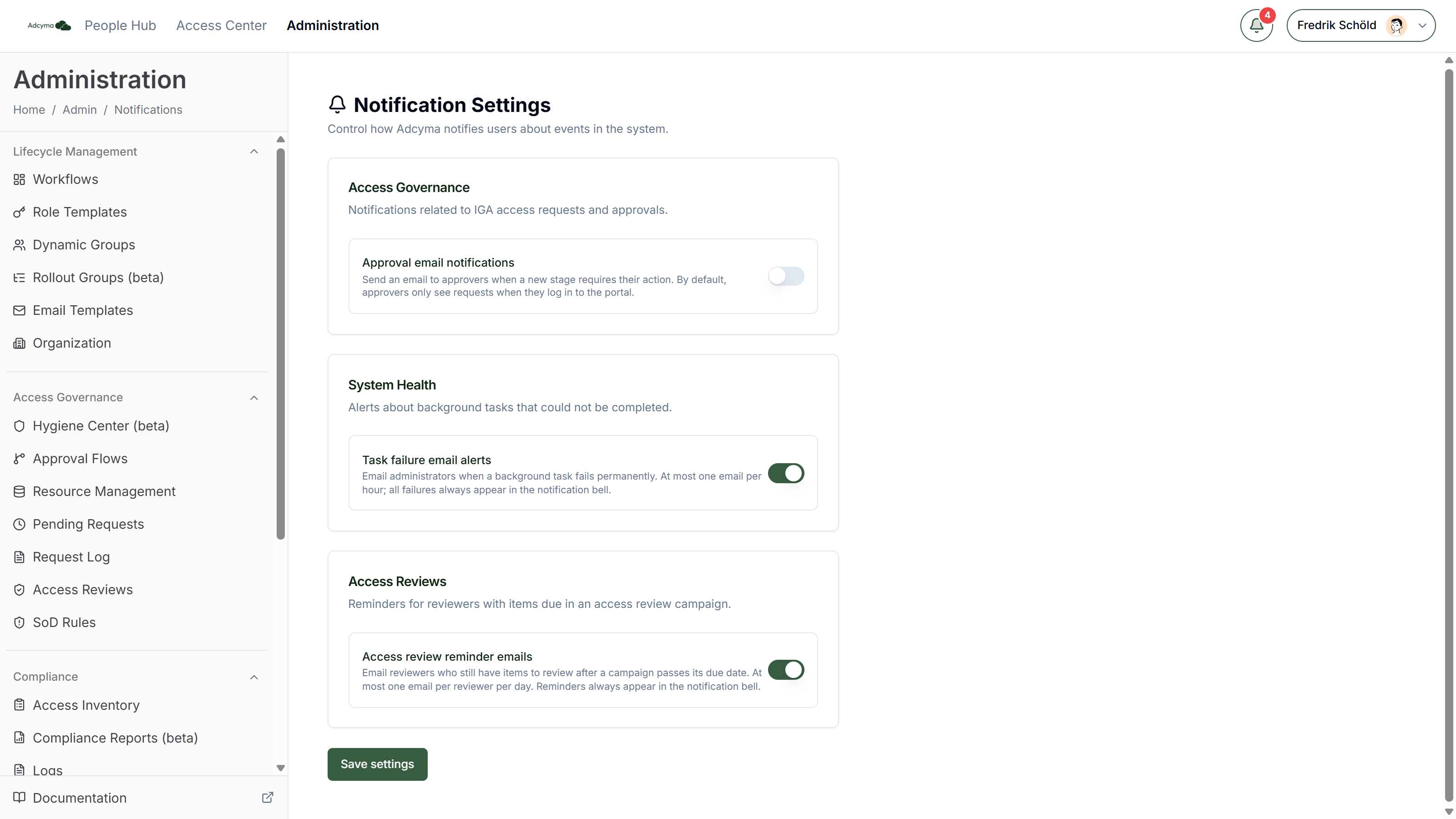
The Notification Settings page has three switches. Change them and click Save settings. Only admins can open this page.
| Setting | Default | What it does |
|---|---|---|
| Approval email notifications (Access Governance) | Off | Emails approvers when a new approval stage needs their action, and emails the requester when their request is approved or not approved. With it off, approvers still get a bell notification, but nothing by email. |
| Task failure email alerts (System Health) | On | Emails all active admins when a background task fails permanently. At most one email per hour. |
| Access review reminder emails (Access Reviews) | On | Emails reviewers who still have items left after a campaign passes its due date. At most one email per reviewer per day. |
Turning an email off does not turn off the bell. Task failures and review reminders always show up there.
Turn on approval emails if your approvers are managers who don't log in to Adcyma every day. Otherwise requests sit until someone remembers to check.
The notification bell
The bell sits in the top bar of the portal. A red badge shows how many unread notifications you have, up to 9+. The bell checks for new notifications every minute, and again when you switch back to the browser tab.
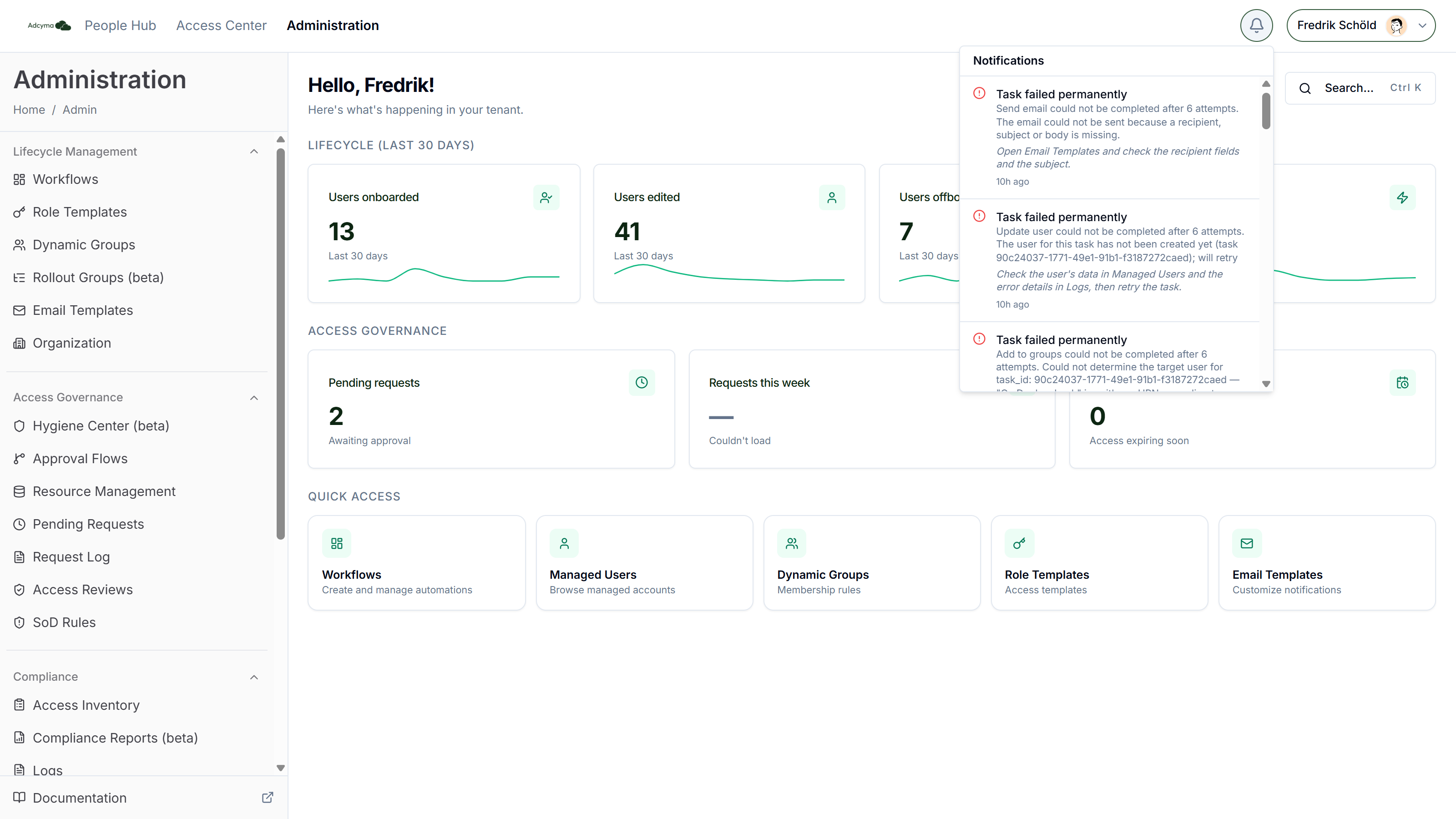
Click the bell to see your latest 50 notifications, newest first. Unread ones have a tinted background. Each one shows:
- A severity icon: red for errors, amber for warnings, grey for information
- A title and a short description
- For task failures, a recommendation in italics, telling you what to check first
- How long ago it happened, for example
5m agoor2d ago
Click a notification to mark it as read and go to the page it's about, for example System Logs for a failed task or the pending requests list for an approval. Mark all as read at the top of the list marks everything you can see as read in one go. Read state is per person, so marking something read does not mark it read for the other admins.
Notifications are deleted automatically after 90 days.
Who gets what
Each notification goes either to everyone with a given role or to specific people. You only ever see notifications meant for you.
| Notification | Severity | Who sees it | Opens |
|---|---|---|---|
| Task failed permanently | Error | Admins | System Logs |
| Approaching your user limit / User limit reached | Warning or error | Admins | Billing |
| Access request awaiting your approval | Info | The approvers for that stage | Pending requests |
| Access items awaiting your review | Info | The reviewers in the campaign | Reviews |
| Reminder: access review items awaiting you | Warning | Reviewers with items left after the due date | Reviews |
| Your access is up for review / Confirm your access | Info | The user whose access is being reviewed | My access |
| Access review items reference a missing group | Warning | Admins | Access Reviews |
| Access review campaign closed | Info | Admins | Access Reviews |
The access review and approval notifications only appear if you have the Identity Governance add-on.
Repeat notifications don't pile up
Some events happen over and over: the same task type failing, a daily review reminder, the seat count creeping up. Instead of adding a new entry every time, Adcyma updates the existing one, moves it to the top and marks it unread again for everyone.
For task failures, that means you get one bell entry per task type, such as one for Add to groups and one for Assign license, showing the most recent failure. To see every failure, open System Logs. Each one is logged there with source task_management and the full error.
Task failures
Adcyma retries background tasks that fail, for example when Microsoft Graph is briefly unavailable. It tries up to five more times, waiting 1, 5, 15, 30 and 60 minutes between attempts. A task only counts as failed permanently when the retries run out, or straight away when the error is one that retrying won't fix. That's when you hear about it.
When a task fails permanently, three things happen:
- The bell entry for admins is created or refreshed, saying which task could not be completed, how many attempts were made and why, plus a recommendation.
- An error entry is written to System Logs with the task ID and the full error text.
- If Task failure email alerts is on, every active admin gets an email, subject to the hourly limit below.
Email throttling
Adcyma sends at most one task-failure email per tenant per hour. Failures within that hour are counted, not lost. The next email after the hour says how many there were, both in the subject, for example "Background task failures in Adcyma (4 in the last hour)", and in the body. The email shows the task, the error, the recommendation and a Review in Logs button.
Recommendations
The recommendation tells you where to start looking. When Adcyma recognizes the specific error, you get advice for that error. If not, it looks for common patterns in the error text:
| The error looks like | Recommendation |
|---|---|
| 401, invalid or expired token | Your Entra app credentials appear to be invalid or expired. Check the app registration under Identity Provider. |
| 403, insufficient privileges | The app registration is missing a required Microsoft Graph permission. Re-check admin consent for the required scopes. |
| 404, user not found | The user no longer exists in Entra ID. It may have been deleted outside Adcyma. Run a sync and retry the task. |
| 429, throttling | Microsoft Graph rate-limited the request. This usually resolves on its own. Retry the task manually. |
| No licenses available | No licenses are available to assign. Free up or purchase licenses in the Microsoft 365 admin center, then retry. |
If the error text matches none of these, the recommendation depends on what the task was doing:
| Task type | Recommendation |
|---|---|
| Creating, updating, disabling, enabling or deleting a user; password reset; revoking sessions | Check the user's data in Managed Users and the error details in Logs, then retry the task. |
| Adding to or removing from groups; applying or removing a role template; managed group reconciliation | Verify the target group still exists in Entra ID and the app registration has the Group.ReadWrite.All permission. |
| Assigning or removing a license | Verify license availability and that the user has a usage location set, then retry. |
| Shared mailbox conversion, auto-reply, forwarding, delegation, OneDrive access, calendar permissions | Verify the Exchange Online and SharePoint permissions on the app registration, then retry. |
| Dynamic group sync | Check the group's rule for fields that no longer exist on your users, then retry the sync. |
| Full Entra sync | Check the Identity Provider connection status. Full syncs do not retry automatically; start a new sync once the connection is healthy. |
| Sending an email | Open Email Templates and check the recipient fields (To, CC, BCC) and the subject. A variable such as {{ manager_email }} is skipped when the user has no value for it. Fix the template, then retry the task. |
| Anything else | Review the error details in Logs and retry the task. |
If the recommendation points at credentials or permissions, the fix is on the Identity Provider page.