

SoD Rules
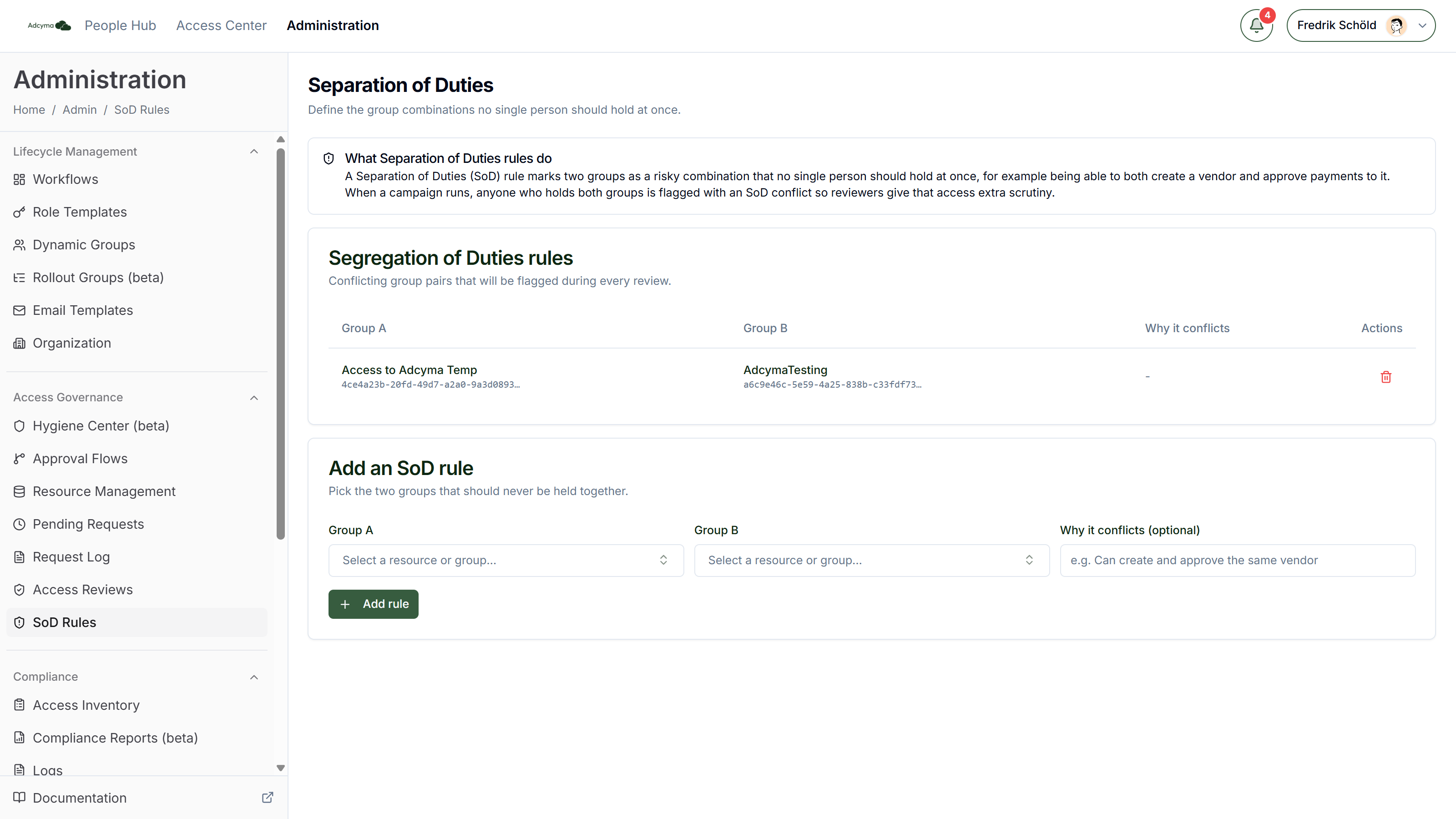
SoD Rules is where you list the pairs of groups that no single person should hold at the same time. Adcyma uses the list during access reviews: anyone who holds both groups in a pair gets flagged, and the reviewer is told to remove one of them.
The classic example is finance. Someone who can create a vendor should not also be able to approve payments to that vendor. In Entra ID terms that is two groups, and an SoD rule is how you tell Adcyma that the combination is a problem.
You find the page under Administration > Access Governance > SoD Rules. It is part of Access Reviews, so the menu item is greyed out if Access Reviews is not enabled for your tenant.
What a rule is
A rule is two groups and an optional note:
| Field | What it holds |
|---|---|
| Group A | The first group in the pair |
| Group B | The second group in the pair |
| Why it conflicts | Optional free text, for example "Can create and approve the same vendor". It is shown in the rules table so the next admin knows why the rule exists. |
The order of A and B does not matter. A rule is checked in both directions.
Rules are stored against the Entra group's Object ID, not against a resource name. If you rename a resource or a group, the rule still points at the same group.
Adding a rule
- Open SoD Rules.
- In the Add an SoD rule card, click the Group A picker and choose a group.
- Do the same for Group B.
- Optionally fill in Why it conflicts.
- Click Add rule.
Each picker is one searchable list with up to three sections:
- Resources lists the target groups of your resources, shown as the resource name followed by the group's Object ID. A resource with several target groups shows up once per group.
- Groups lists the groups in your directory, by display name and Object ID.
- Object ID appears when you paste an ID that is in neither list. Choose Use Object ID to use it as is.
If you have no resources with a target group and the directory group list is empty, the card says No groups to choose from. You can still create a rule by pasting Object IDs into the pickers.
Changing and removing rules
The rules table shows Group A, Group B and Why it conflicts for every rule. Where Adcyma can resolve the group, you see its name with the Object ID underneath. Where it cannot, you see the raw Object ID.
There is no edit. To change a rule, delete it with the bin icon in the Actions column and add it again. Deleting asks you to confirm first.
Where conflicts show up
SoD rules are checked when Adcyma builds review items for an access review, both for review campaigns and for continuous review. For each item (one person, one group) Adcyma looks at the rules that include that group and checks whether the same person also holds the other group in the pair. If they do, the item gets the Separation-of-duties conflict risk flag.
Because the check runs per item, both sides of a conflict are flagged. A person in both the vendor-creation group and the payment-approval group shows up with the flag on each of the two items.
A flagged item is treated as follows:
- It is marked Remove recommended, with the reason "Conflicts with another access this person holds". An SoD conflict on its own is enough to tip the recommendation to remove.
- It is never auto-certified, even if it would otherwise qualify (for example because nothing changed since the last campaign).
- In the reviewer's inbox it sorts to the top. SoD conflicts carry the highest weight of all the risk flags, so they are looked at before dormant or external access.
- The reviewer sees the flag with the explanation that this combination breaks a segregation-of-duties rule your organization defined.
<!-- TODO screenshot: a review item in the reviewer inbox showing the "Separation-of-duties conflict" flag and "Remove recommended". Needs a tenant with an SoD rule and a user holding both groups. Save as public/img/SodRulesReviewFlag.png -->
The reviewer still makes the decision. Keeping the access is allowed, and the decision is recorded like any other review decision.
An SoD rule does not stop anyone from getting the second group. Access requests, approvals, dynamic groups and role templates do not check SoD rules. The conflict is caught at the next access review, not at the moment the access is granted. If you need the combination to be impossible, put an approver on the resource who knows the rule. See Approval Flows.
The other group has to be in the same review
Adcyma checks a person's groups against the other access in the same review, not against every group they hold in Entra ID.
For a review campaign this means both groups must be in the campaign's scope. If you run a campaign on the payment-approval group only, the vendor-creation membership is not part of that campaign and the conflict is not flagged. Scope the campaign to cover both groups, or to the department or users concerned, when SoD is the point of the review.
Continuous review works the same way. It compares against the other access that is due for review in the same run.
When new rules take effect
Risk flags are set when a review item is created. A rule you add today applies to review items created from now on. Items already sitting in a running campaign keep the flags they were created with.
Permissions
You need the admin role to add or delete SoD rules. The page also requires the Access Reviews feature to be enabled for your tenant.
Related controls
SoD rules are about combinations of access. Adcyma has one separation-of-duties check that is enforced rather than flagged: nobody can approve or finalize their own access request. If an admin tries, the approval is refused with "You cannot approve your own access request".
Tips
- Start with the few pairs your auditor actually asks about. Finance (create vendor and approve payment), and payroll (change salary and run payroll) are the usual ones.
- Fill in Why it conflicts. A year from now nobody will remember why two groups were paired.
- Prefer picking from Resources where you can. Those groups have an owner, so a resource-owner review lands with someone who knows the system.
- After adding rules, run a campaign scoped to the people or groups the rules cover. That gives you a list of existing conflicts on day one instead of waiting for the next scheduled review.