

User Permissions
The User Permissions page is where you manage who can access the Adcyma platform itself and what they're allowed to do: administrators, internal users, and API keys for your tenant. These accounts are separate from the managed users in your directory.
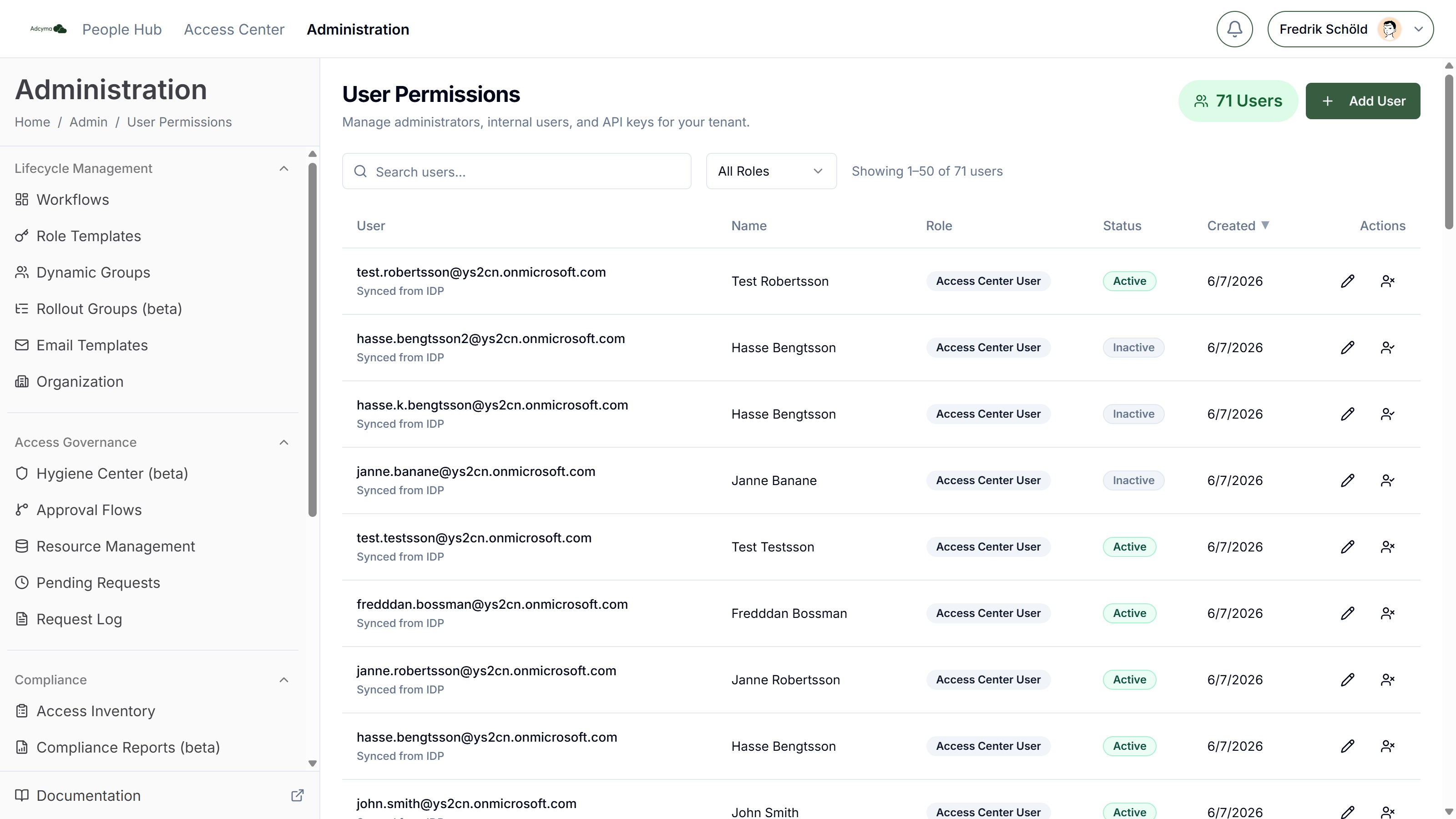
Accounts on this page grant access to the Adcyma platform only. They are not provisioned to your directory and are separate from your organization's managed user population.
Roles
Adcyma has four role levels:
Admin
The highest privilege level. Admins have full access to all Adcyma functions, including the Administration area, the People Hub, and the Access Center. They can create, edit, and delete platform users and modify all settings.
People Hub User
Access to the People Hub dashboard: onboarding new employees, editing employee details, offboarding, and viewing queued tasks and history. No access to the Administration area.
Access Center User
Access to the Access Center: requesting access, acting on approvals, and managing owned resources. This role is granted automatically to managed users synced from your identity provider; it can't be assigned manually.
API
A machine account used for Adcyma's REST API and the MCP server. API users authenticate with an API key instead of signing in, and each key carries an access level that fixes what it's allowed to do.
Managing Users
The table lists every account with its username or email, name, role, status (Active/Inactive), and creation date. You can search, filter by role, sort by any column, and page through large lists.
Add User Click Add User and choose a role. For Admin and People Hub users, enter their email and name; they'll sign in with their email address. For API users, enter a username instead, then pick an access level and an optional label (see API Keys below).
Edit Update a user's name or change their role. API users can't be edited; create a new API user if you need different settings.
Delete or Disable Accounts created in Adcyma can be deleted. Accounts synced from your identity provider (marked "Synced from IDP") can't be deleted here; instead you can disable or re-enable them, which controls whether they can sign in.
API Keys
Access levels
When you create an API user you pick an access level. It's fixed at creation — a key's permissions can't be widened later, so a new integration means a new key.
| Access level | What the key can do |
|---|---|
| Read only, for AI assistants (MCP) | Read data through the read-only API and the MCP server. Cannot change anything. |
| User management | Create and update managed users through the API. |
| Full access (legacy) | Behaves like keys created before access levels existed. Not recommended for new integrations. |
Existing keys keep working exactly as before; they show as Full access in the table. Legacy keys are deliberately rejected by the read-only API and the MCP server — read access is something you opt into, not something an old key inherits.
Labels
Give each key a short Label, such as Claude, IT department (up to 100 characters). The label appears in the audit log beside every call the key makes and in the User Permissions table, which is what lets you tell two integrations apart months later. Prefer one key per integration over a shared key: you can then revoke one without disturbing the others.
Copying the key
The key is displayed once in a confirmation dialog, with a copy button. Store it somewhere safe; it cannot be retrieved later. If you lose a key, create a new API user and delete the old one.
Keys with read access show a second value in that dialog, the MCP secret: the same credentials pre-formatted as companyId:username:apiKey for pasting into an AI assistant. It's the same key, just pre-assembled — copy the MCP secret for MCP clients, and the plain API key for direct REST calls.
Best Practices
Assign the minimum role necessary for each user's responsibilities. Review accounts and role assignments periodically to make sure they still match current needs. Create accounts promptly for new team members and remove access for departing personnel. Rotate API keys when team members with access to them leave.