

Requesting and Approving Access
This page is for the people who use the Access Center day to day: employees who need access to something, and the colleagues who approve it. If you set up resources and approval flows, start with Resource Management and Approval Flows instead.
You'll find the Access Center in the top navigation, next to People Hub. If the link isn't there, ask your administrator to give you the Access Center User role.
Requesting Access
- Open the Access Center and stay on the My Requests tab.
- Click Request Access.
- Fill in the three questions and click Submit Request.
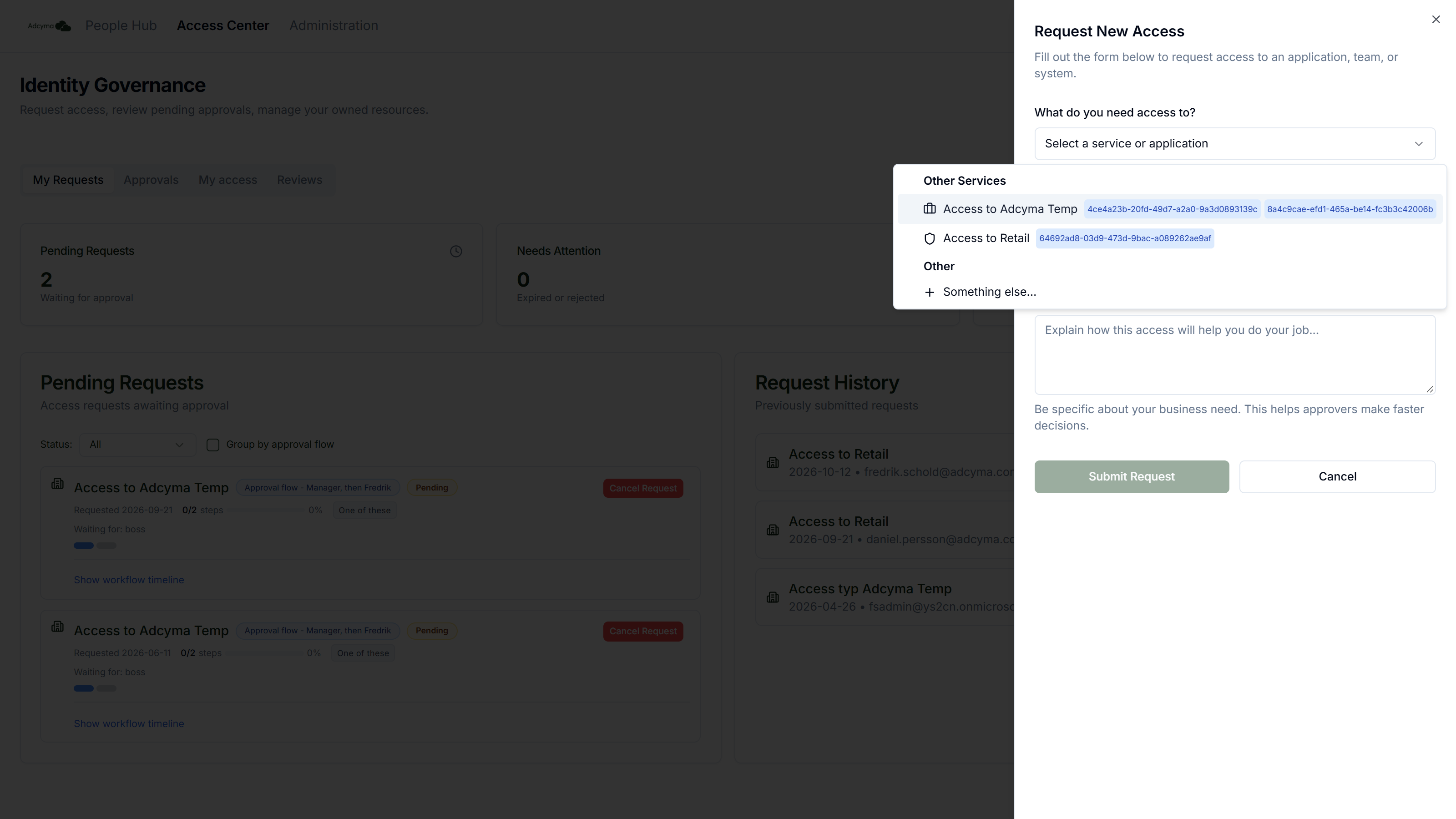
What do you need access to?
Pick a resource from the list. Resources are grouped under their organizational unit, and each shows its icon and, if it has one, its owner. Resources without a unit are listed under "Other Services".
If what you need isn't in the list, scroll to the bottom and pick Something else..., then describe what you need in the text field. A custom request goes to your administrators rather than through an approval flow, and they set up the access by hand. Name the system and the level of access, like "Read access to the Finance SharePoint site", not just "SharePoint".
How long do you need access?
Choose a duration from the list. The options depend on the longest access the resource allows, which is shown under the field. For example, a resource capped at 3 months only offers 1 or 3 months.
To end on a specific day instead, tick Pick a specific end date and choose a date. It has to be in the future and within the resource's maximum.
When the time runs out, Adcyma removes the access automatically on the morning of the end date. You don't need to do anything, and you can request it again if you still need it.
Why do you need this access?
Write a justification. This is what your approvers read, and often all they read. "Starting on the Q3 budget with Anna's team, need to edit the forecast workbook" gets approved faster than "for work".
After You Submit
If the resource is set to approve automatically, you get access straight away. Otherwise the request goes to the approvers in the resource's approval flow, and they're notified. If your administrator has turned on approval emails, you also get an email when your request is approved or denied.
Tracking Your Requests
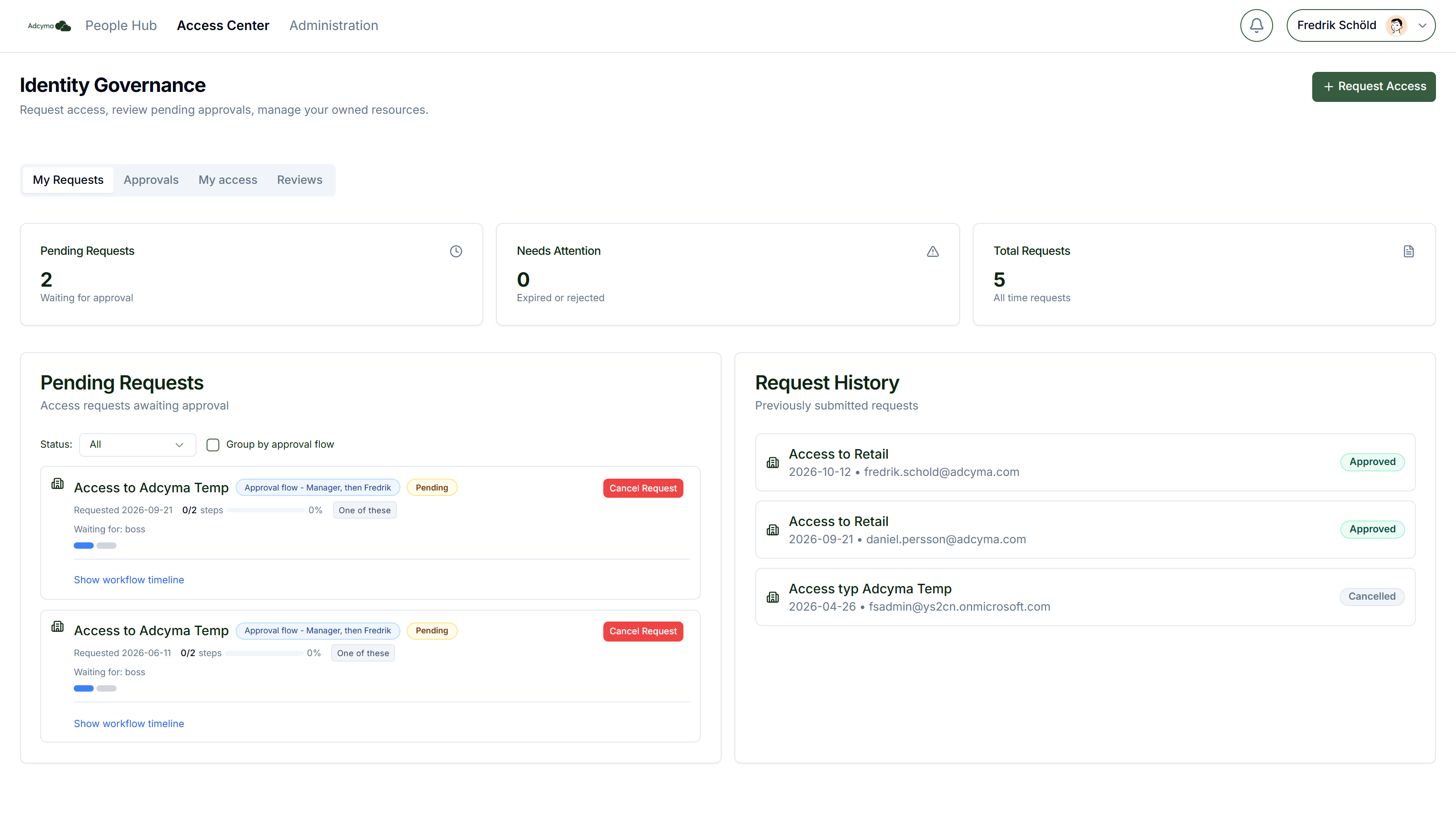
The My Requests tab has three counters at the top:
- Pending Requests waiting for approval
- Needs Attention, requests that were denied or whose access has expired
- Total Requests you've ever made
The Pending Requests panel shows each open request with the approval flow's name, how many steps are done (for example "1/2 steps"), and Waiting for: followed by the people or roles it's waiting on. Filter the list by status (All, Pending, In Progress, Completed, Denied, Cancelled), or tick Group by approval flow to bundle requests by flow.
To withdraw a request you no longer need, click Cancel Request. You can only cancel requests that are still pending.
The request history next to it lists everything you've requested, with status and expiry date.
Approving Requests
If you're an approver in a flow, the Approvals tab shows the requests waiting on you, with a red badge showing how many. Each one shows the resource, the flow's name, who asked and when, their justification, and which stage it's at. Click Refresh to reload the list.
You hear about new requests in three places:
- The notification bell in the portal
- The badge on the Approvals tab
- An email with a direct link, if your administrator has turned on approval emails
Reviewing a Request
Click Review (or the link in the email) to open the request page. It shows:
- Request Details: who requested, when, the access duration, when it would expire, and the business justification
- Approval Workflow: every stage of the flow, who is in each stage, and whether they've approved, denied, or not acted yet. The current stage is highlighted.
- Your Decision, if it's your turn
<!-- TODO screenshot: /img/RequestingAccessApprovalDetail.png | URL: https://portal.adcyma.com/iga/approvals/<requestId> (open any request via Access Center > Approvals > Review) | Show Request Details, the Approval Workflow stage list and the Your Decision card. Do not click Approve or Deny. -->
Approving or Denying
Under Your Decision, optionally add a Comment, then click Approve. To refuse, fill in Reason for denial and click Deny. If approval emails are turned on, the requester gets your reason in the email telling them the request wasn't approved, so say what they should do instead if there is something.
What happens next depends on the flow:
- One of these: your approval is enough for that stage.
- All of these: the request waits until everyone in the stage has approved.
- All of these in order: the request moves to the next person in line. You won't see a request until the people before you have approved it.
In every mode, one denial ends the request. When the last stage is approved, the requester is added to the resource's groups straight away.
A few rules worth knowing:
- You can't approve your own request, even if you're in the flow.
- If you're approving as the requester's manager and they have no manager set, the resource owner is asked instead.
- Once your stage is done, whether you or someone else acted, the request leaves your Approvals list. If you open an old email link after that, you may see "You don't have permission to view this request." That means it's no longer waiting on you.
My Access and Reviews
If your organization runs access reviews, the Access Center has two more tabs.
My access asks you to confirm the access you already have. For each item, it shows when you last used it and why it's flagged, if it is. Answer Yes, I still need it, No, I don't need it anymore, or I'm not sure. Quick check-ins further down only need a yes or no. The badge on the tab shows how many items are waiting. If you remove something by mistake, request it again.
Reviews lists access reviews where you decide on other people's access, for example as a manager reviewing your team.
<!-- TODO screenshot: /img/RequestingAccessMyAccess.png | URL: https://portal.adcyma.com/iga (My access tab; only visible when access reviews are enabled for the tenant) | Show the "Your access review" panel with at least one item if available. Do not click any decision buttons. -->
Troubleshooting
The resource I need isn't in the list. Use Something else... and describe it, or ask your administrator to add it as a resource.
My request has been pending for days. Check Waiting for: on the request. If it's waiting on one person, they may be away, so contact them or your administrator. In flows where everyone has to approve, one missing approval holds it up.
I approved but the request is still in my list. Click Refresh on the Approvals tab.
I can't see a request I was told to approve. It may be waiting on someone earlier in the sequence, or another approver may have already decided it.
My access disappeared. It probably expired. Check the expiry date in your request history and request it again if you still need it.