

Access Center
The Access Center is the part of identity governance your employees actually use. People request access there, approvers decide, and resource owners see who has access to what they own. It's in the top navigation, next to People Hub, and the page itself is titled Identity Governance.
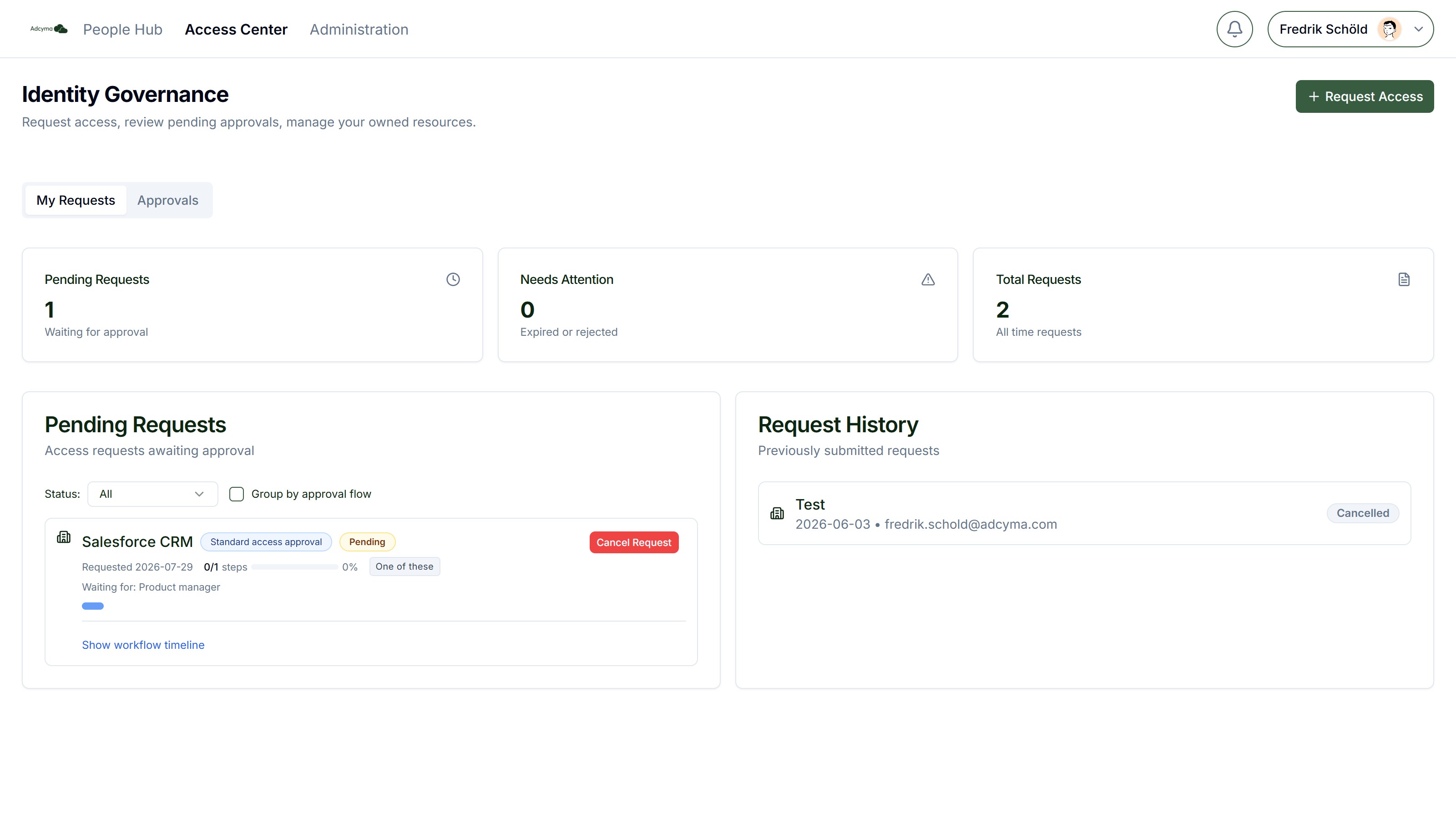
The Access Center is part of the Identity Governance (IGA) add-on. People need the Access Center User or Admin role to see it; see User Permissions.
This page explains what each tab does and covers resource owners in detail. For a step-by-step guide to requesting and approving, written for end users, see Requesting and Approving Access.
Tabs
| Tab | Who sees it | What it's for |
|---|---|---|
| My Requests | Everyone | Request access, follow open requests, cancel them, see history |
| Approvals | Everyone (empty unless you're an approver) | Requests waiting on your decision, with a count badge |
| Owned Resources | People who own at least one resource | Who has access to your resources, and managing members if allowed |
| My access | Everyone, when access reviews are enabled | Confirm whether you still need the access you have |
| Reviews | Everyone, when access reviews are enabled | Access reviews assigned to you as a reviewer |
The Access Center remembers which tab you had open last.
My Requests
Click Request Access and answer three questions: what you need, for how long, and why. The resource list is grouped by organizational unit and shows each resource's icon. If what you need isn't listed, pick Something else... at the bottom and describe it. That creates a custom request, which goes to administrators in Pending Requests instead of an approval flow.
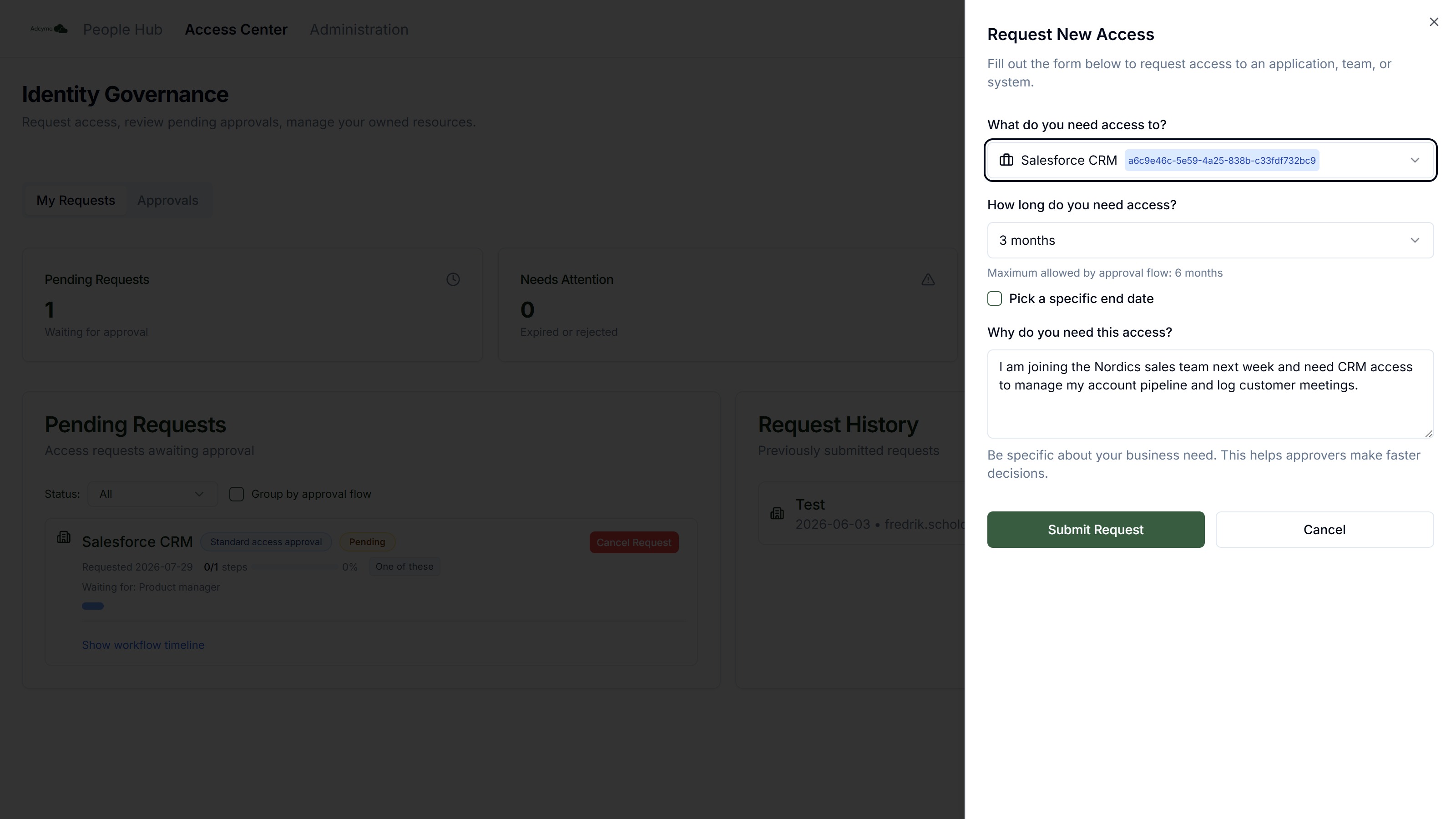
The duration choices depend on the resource's Max Access Duration, and Pick a specific end date lets you choose an exact end date within that limit. When the access expires, Adcyma removes it automatically.
Open requests show how far they've come and who they're waiting for. You can cancel a request while it's still pending. See Requesting Access for the details.
Approvals
If you're an approver in an approval flow, requests waiting on you appear here. Click Review to open the request page, which shows the whole flow, every stage and who has acted, and lets you Approve (with an optional comment) or Deny (with a reason).
How your decision counts depends on the flow's approval mode:
- One of these: your approval alone completes the stage
- All of these: everyone in the stage must approve
- All of these in order: approvers act one after another, and you only see the request when it's your turn
A denial at any stage ends the request. You can't approve your own request. See Approving Requests.
Owned Resources
If you're set as the owner of a resource in Resource Management, the Owned Resources tab appears. Under Resources You Own, each resource is a card you can expand. The card header shows how many members and groups it has, and how many members are external.
<!-- TODO screenshot: /img/AccessCenterOwnedResources.png | URL: https://portal.adcyma.com/iga (Owned Resources tab; requires the logged-in user to own a resource) | Show the legend and one expanded resource card with its members table and "Add User to <group>" buttons. Do not click Kick or Add. -->
A legend at the top explains the badges:
| Badge | Meaning |
|---|---|
| Manage | You can add and remove members |
| View Only | Read-only. An administrator has to turn on Allow owner to manage members before you can change anything. |
| External | The member got access some other way than an approved request, for example added directly by you |
| n group(s) | How many target groups the resource has |
Expand a card to see its members, grouped by target group. For each member you see their name, job title and email, the date their request was approved, and when their access expires. Members who were granted Permanent access show "Permanent".
Click Refresh to reload the list after changes.
Adding Members
If the resource has the Manage badge, each target group gets an Add User to button (for example "Add User to Sales-CRM-Users"). It opens the Add Member to Service Group dialog, where you can:
- Search Directory Users by name, job title, or UPN, and click a person to add them
- Or Add by Email (external): type an email address and click Add Email
The person is added to that group straight away. There is no request and no approval flow involved, and the access doesn't expire. In the members list they're marked External.
Members you add this way have no end date. Adcyma won't remove them later, so remove them yourself when they no longer need the access.
Removing Members
With the Manage badge, each member has a Kick button. After you confirm, Adcyma revokes the access:
- For a member who came in through an approved request, the request is marked revoked.
- For an External member, Adcyma removes them from the group. If they're in several of the resource's groups, you get one Kick button per group.
Without the Manage badge, there are no buttons, only a note that the resource is read-only for you.
Owned Dynamic Groups
Below your resources, Owned Dynamic Groups lists any dynamic groups you own. For each one you see a preview of current members, the Always Include Users and Always Exclude Users lists, the rules (read-only), how often the group is evaluated, and whether strict mode is on.
If an administrator turned on Allow owner to manage include/exclude users for the group, you also get Manage Overrides:
- Add Include User: keep someone in the group even though they don't match the rules, like a contractor who needs the same access as the team
- Add Exclude User: keep someone out of the group even though they match the rules
- Click the X next to a name to remove them from a list
If someone is on both lists, exclusion wins. You can't change the rules themselves; ask an administrator for that.
Owned Dynamic Groups is shown inside the Owned Resources tab, so it only appears if you also own at least one resource.
Best Practices
- Write a justification your approver can decide on without asking you a question.
- Ask for the shortest duration that does the job. Renewing is quick.
- If you approve requests, check the Approvals tab daily, or ask your administrator to turn on approval emails.
- If you own resources, go through your members every few months and kick anyone who has moved on. External members never expire on their own.
Troubleshooting
If you can't see the Access Center:
- Check with your administrator that the Identity Governance add-on is enabled
- Check that you have the Access Center User (or Admin) role
If a resource you need isn't listed:
- It hasn't been added to the catalog. Use Something else... or ask your administrator.
If your request seems stuck:
- Check who it's waiting for on the request
- The approver may be away. Contact them or your administrator.
If you own a resource but can't add or remove members:
- The resource shows View Only. Ask an administrator to turn on Allow owner to manage members.